Configuring the Certificate for TLS Over LDAP
If the LDAP connection is over unsecured networks, it is recommended that UNIFYConnect (acting as the LDAP server) and the connected identity management system (acting as the LDAP client) be configured so that LDAP traffic is encrypted using Transport Layer Security (TLS). To do so, a certificate is needed. See the appropriate section below for instructions on how to configure or generate certificates.
See LDAP Security for more information on this topic.
Configuring a Certificate in UNIFYConnect
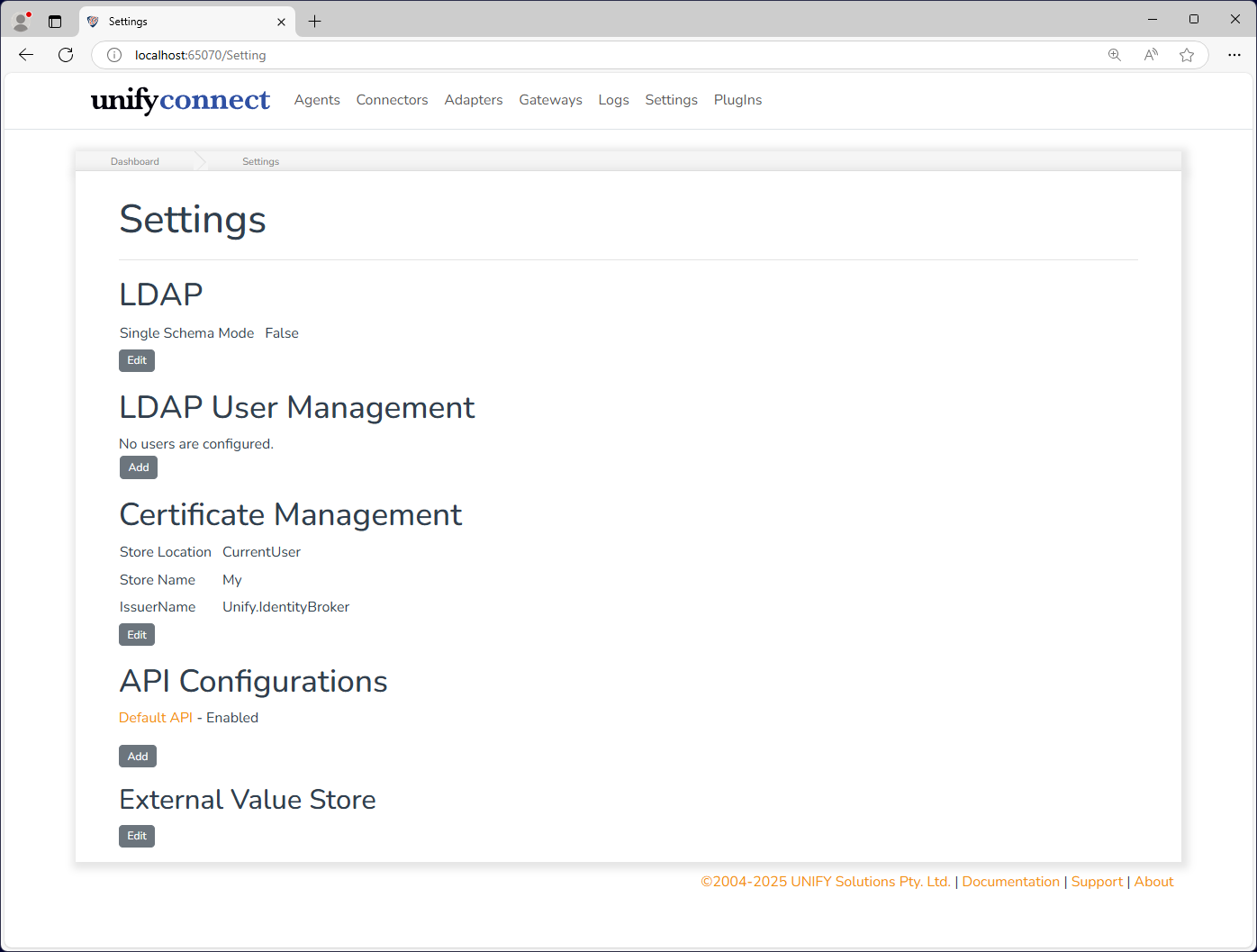
On the Settings page, click the Edit button under the Certificate Management section.
Select the Store Name, Store Location, and add as many Certificate Attributes to uniquely identify the certificate.
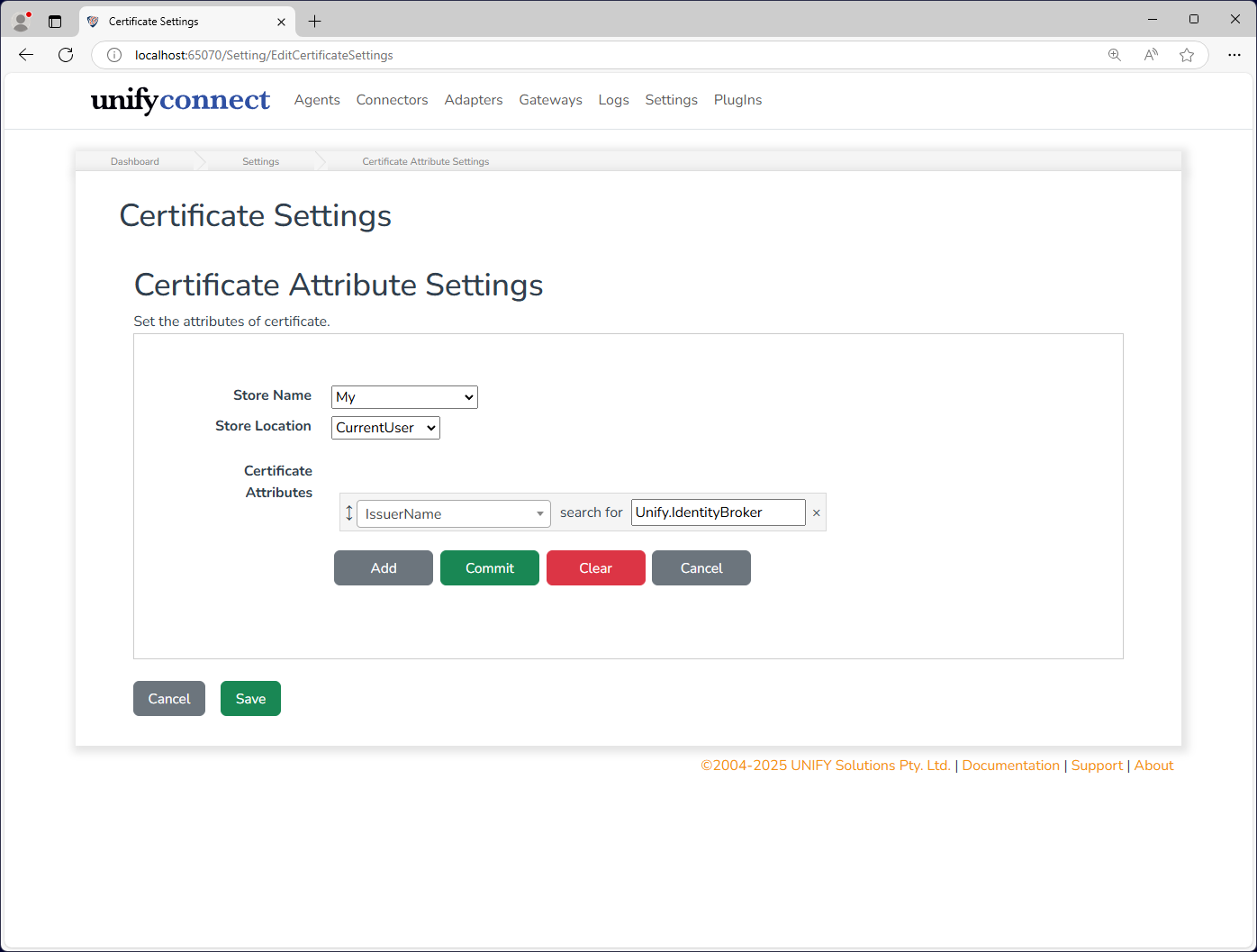
Click Save. If no warning messages are displayed, UNIFYConnect is configured for use with the certificate.
WARNING
Please note that the certificate must have a private key.
Generating a Certificate
A certificate can be generated if one is not available. This can be achieved using the PowerShell command New-SelfSignedCertificate, for example:
New-SelfSignedCertificate -KeyExportPolicy Exportable -Subject "CN=UNIFYBroker" -NotAfter (Get-Date).AddMonths(12) -TextExtension @("2.5.29.37={text}1.3.6.1.5.5.7.3.1") -CertStoreLocation "Cert:\CurrentUser\My" -KeySpec KeyExchange -Provider "Microsoft RSA SChannel Cryptographic Provider" -KeyAlgorithm RSA -KeyLength 2048An alternative, deprecated method using makecert (or through the Visual Studios Command Console command of the same name):
makecert -r -pe -n CN="Unify.IdentityBroker" -b 01/01/2015 -e 01/01/2016 -eku 1.3.6.1.5.5.7.3.1 -ss my -sr currentuser -sky exchange -sp "Microsoft RSA SChannel Cryptographic Provider" -sy 12