Data Explorer Log Writer
Overview
This log writer can be used to push log information to an Azure Data Explorer database, with log data is serialized to JSON.
Requirements
In order to use this log writer some setup steps are required to prepare the Data Explorer instance before configuring the log writer itself. Before following this process, ensure the following Azure resources have been created:
- Data Explorer cluster with a created database
- A Microsoft Entra identity that UNIFYConnect can use to authenticate. This can be supplied through the default Azure credential chain, workload identity, managed identity, or an application client secret.
Table Preparation
Create a table in the Data Explorer database. The following command can be used in the Azure portals query editor, but the table can also be created using the portal's interactive wizard as well. Set tableName to a name for the table.
.create table <tableName> (TimeStamp: datetime, Source: string, Module: string, Severity: string, Message: string, Level: string, Data: dynamic)Execute the following command in the Azure portal query editor to setup JSON mappings for the logs table. Set tableName to the name of the table, and mappingName to a unique name for the mapping.
.create-or-alter table <tableName> ingestion json mapping "<mappingName>"
'['
'   { "column": "TimeStamp", "datatype": "datetime", "Properties": { "Path": "$.timeStamp" }},'
'   { "column": "Source", "datatype": "string", "Properties": { "Path": "$.source" }},'
'   { "column": "Module", "datatype": "string", "Properties": { "Path": "$.module" }},'
'   { "column": "Severity", "datatype": "string", "Properties": { "Path": "$.severity" }},'
'   { "column": "Message", "datatype": "string", "Properties": { "Path": "$.message" }},'
'   { "column": "Level", "datatype": "string", "Properties": { "Path": "$.level" }},'
'   { "column": "Data", "datatype": "dynamic", "Properties": { "Path": "$.data" }},'
']'If streaming ingestion mode is going to be used (see below), run this command in the Azure portal query editor to enable it for the logs table. Set tableName to the name of the table.
.alter table <tableName> policy streamingingestion enableRun the following commands in the Azure portal query editor to give the selected Entra identity the required permissions to the database and table. Set databaseName to the name of the database, tableName to the name of the table, appId to the client ID of the identity, and aadDomain to the domain name associated with the Entra tenant.
.add database <databaseName> viewers ('aadapp=<appId>;<aadDomain>') 'UNIFYConnect Logging Viewer Entra App'
.add table <tableName> ingestors ('aadapp=<appId>;<aadDomain>') 'UNIFYConnect Logging Ingestor Entra App'Configuration
The Data Explorer log writer requires the following by way of configuration.
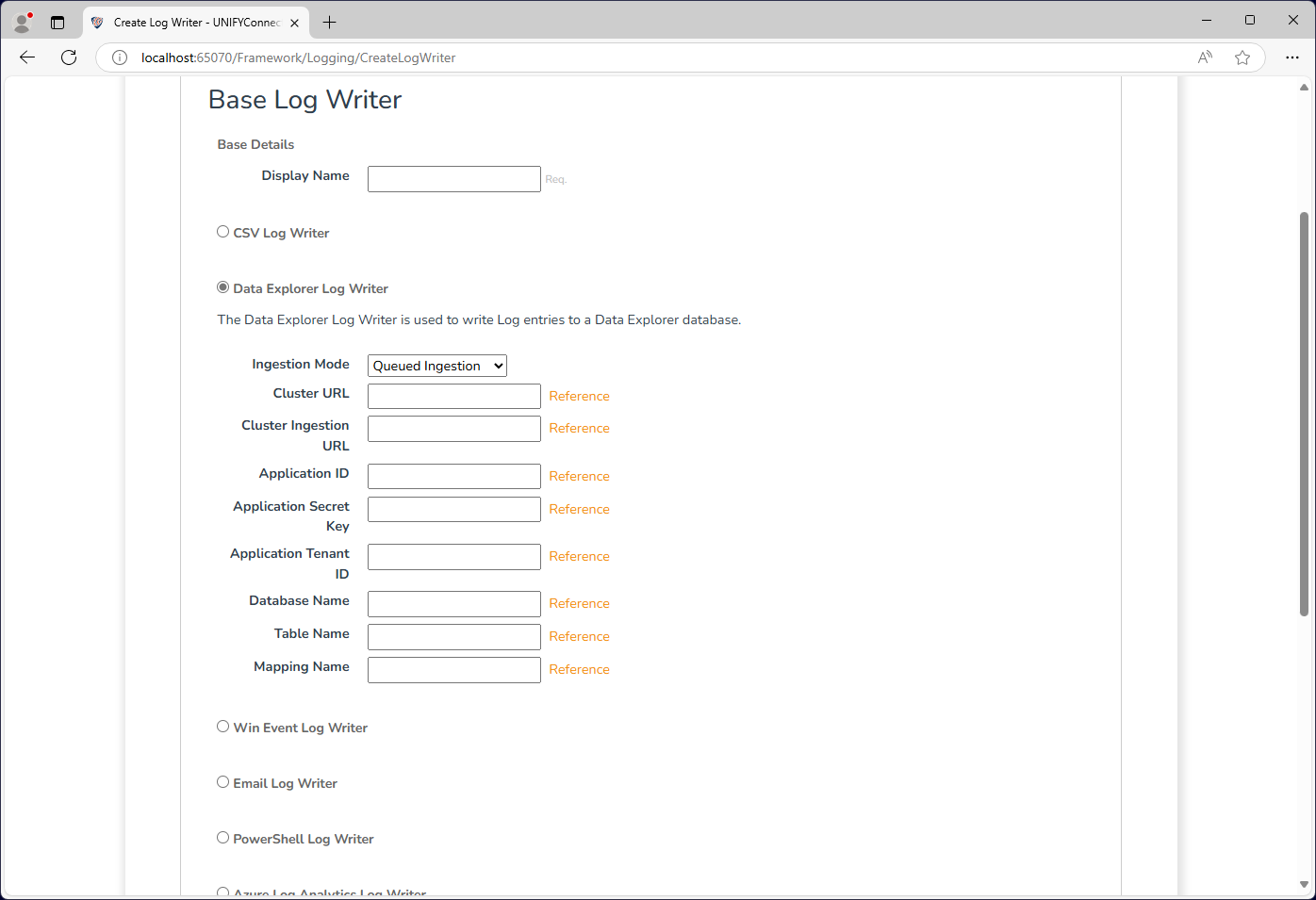
| Attribute | Description |
|---|---|
| Name | The display name of the log writer which is used for identification throughout UNIFYConnect. |
| Ingestion Mode | Specifies the method in which data is ingested into Data Explorer. See below for the pros and cons of the available modes. |
| Cluster URL | The URL to the Data Explorer cluster. This will be listed in the overview of the cluster in Azure portal. |
| Cluster Ingestion URL | The ingestion URL to the Data Explorer cluster when Queued Ingestion mode is used. This will be listed in the overview of the cluster in Azure portal. |
| Authentication | The Azure credential to use. See Azure Writer Authentication. |
| Client ID | Required for Client secret. Optional for Workload identity and Managed identity. For managed identity, leave blank for the system-assigned identity or specify a user-assigned identity client ID. Hidden for the default credential chain. |
| Application Secret Key | The application secret. Required and displayed only for Client secret. |
| Application Tenant ID | Required for Client secret and an optional override for Workload identity. Hidden for other modes. |
| Database Name | The name of the Data Explorer database. |
| Table Name | The name of the table created for UNIFYConnect logs. |
| Mapping Name | The name of the JSON mapping created in the logs table. |
Authentication
The selected credential is used for both ingestion and any Data Explorer operations performed by this writer. Selecting Workload identity or Managed identity creates only that credential; values configured for another credential type are not considered. Refer to Azure Writer Authentication for the mode behavior, host requirements, and use of External Value Store references.
Ingestion Mode
Azure Data Explorer provides different APIs for ingesting data, with different behaviours and performance costs. The ingestion mode of the log writer should be selected based on this information. The following gives a brief overview of the modes; for more details, refer to the Microsoft documentation.
Queued Ingestion
Ingested data are added to a queue before being periodically added to the Data Explorer table. This method is more efficient in terms of cluster compute, however results in a delay between the client uploading the data, and it being available in query results.
Streaming Ingestion
In this mode, uploaded data is streamed directly into the Data Explorer table, with virtually no latency between upload and availability for the query. This comes at the cost of a higher compute load (and therefore monetary cost) placed on the cluster.