Azure Log Analytics Audit Writer
Overview
The Azure Log Analytics audit writer can be used to send audit entries to a specific Azure Log Analytics workspace.
Sent entries will contain the message of individual audit entries as a JSON formatted message.
NOTE
Due to limitations of the Azure Monitor API where API calls are limited to 1MB, some audit messages that contain entity details (such as connector import audit messages) may fail to submit.
Configuration
The Azure Log Analytics audit writer requires the following by way of configuration:
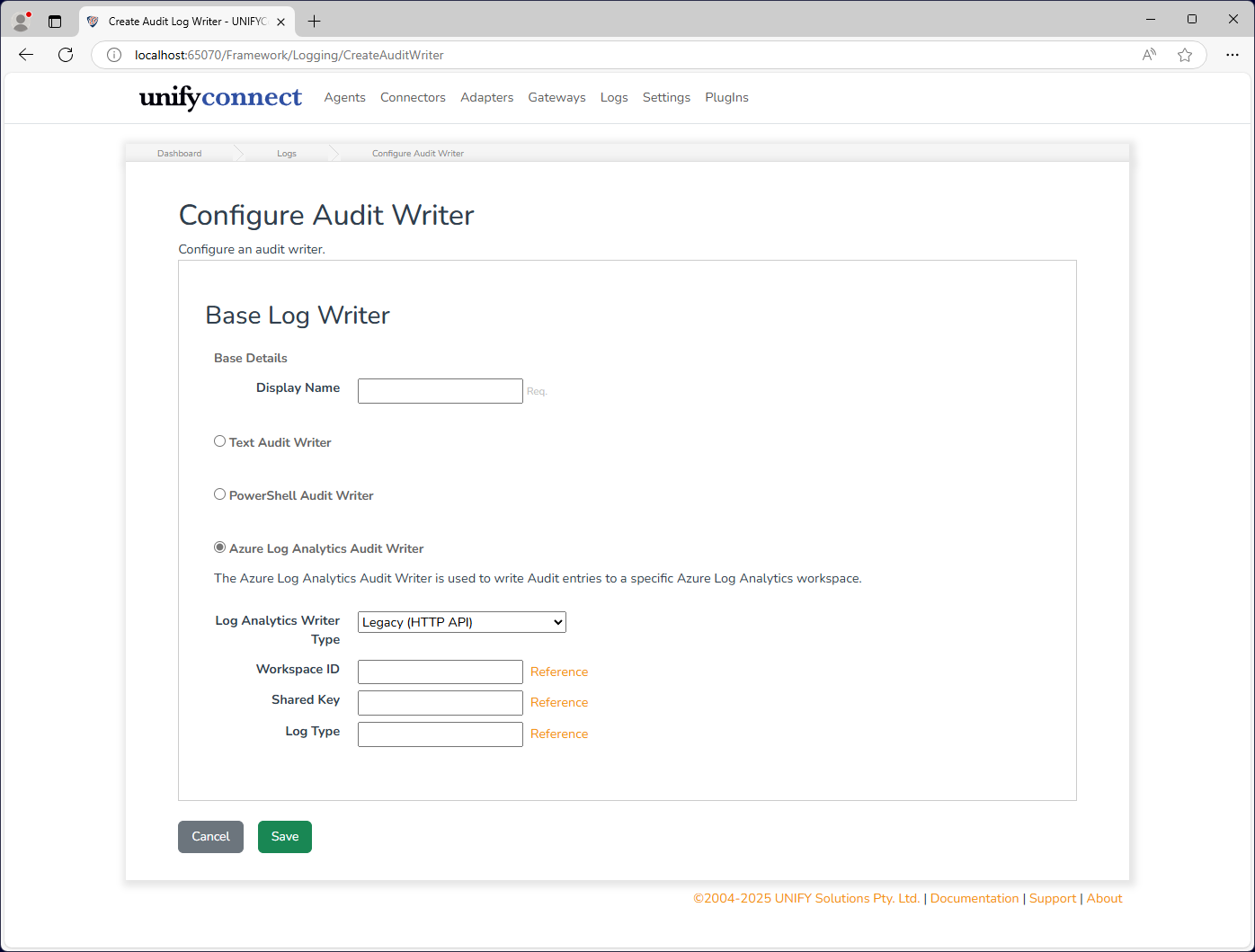
| Attribute | Supports References | Description |
|---|---|---|
| Name | no | The display name of the audit writer which is used for identification throughout UNIFYConnect. |
| Writer Type | no | The type of the writer to use.Legacy uses the HTTP Data Collector API. DCR uses Data Collection Rules through the Logs Ingestion API. |
| Workspace ID | yes | The workspace ID of the Azure Log Analytics workspace.Required if Writer Type is set to Legacy |
| Shared Key | yes | The shared key allows access to the workspace.Required if Writer Type is set to Legacy |
| Log Type | yes | The log type to use.Required if Writer Type is set to Legacy |
| Data Collection Endpoint | yes | The Data Collection Endpoint URI for Azure Log Analytics.Required if Writer Type is set to DCR |
| Data Collection Rule ID | yes | The Data Collection Rule ID for Azure Log Analytics.Required if Writer Type is set to DCR |
| Data Collection Stream Name | yes | The Data Collection Stream Name for Azure Log Analytics.Required if Writer Type is set to DCR |
| Auth Client ID | yes | The Client ID for Azure Log Analytics authentication.Required if Writer Type is set to DCR |
| Auth Client Secret | yes | The Client Secret for Azure Log Analytics authentication.Required if Writer Type is set to DCR |
| Auth Tenant ID | yes | The Tenant ID for Azure Log Analytics authentication.Required if Writer Type is set to DCR |
Azure Log Analytics Audit Writer (DCR) Setup Guide
The steps required to set up a DCR audit writer are as follows:
- Create a Microsoft Entra App Registration / Service Principal
- Create Data Collection Endpoint (DCE)
- Create a custom table in LAW (DCR-based). Data Collection Rule (DCR) (can be reused for multiple UNIFY tables)
- Role assignment on the DCR for that service principal
- Configure Azure Log Analytics audit Writer for use with DCR API.
Prerequisites
- A Log Analytics workspace
- Ensure you have at least contributor rights to create DCE/DCR/table resources in that workspace.
Create a Microsoft Entra App Registration
Create an Application registration to authenticate against the API
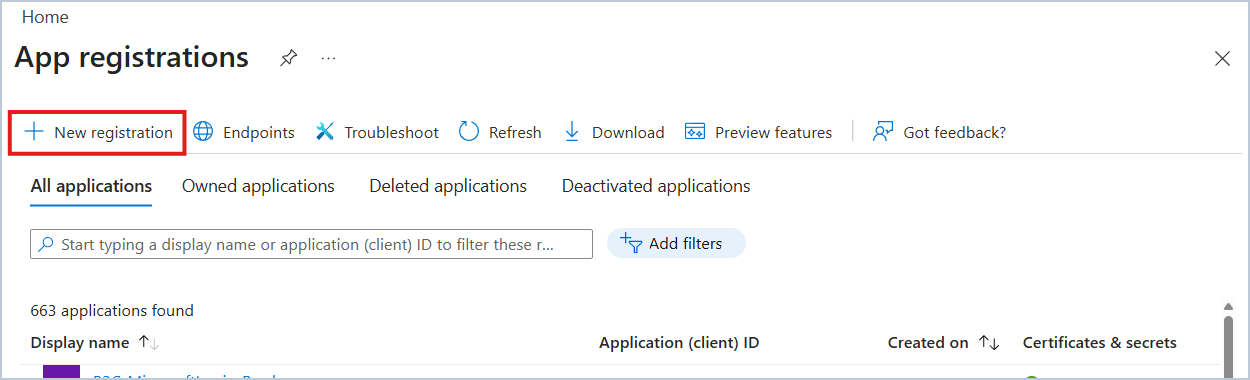
- In Azure Portal, on the Microsoft Entra ID menu, select App registration > New Registration.
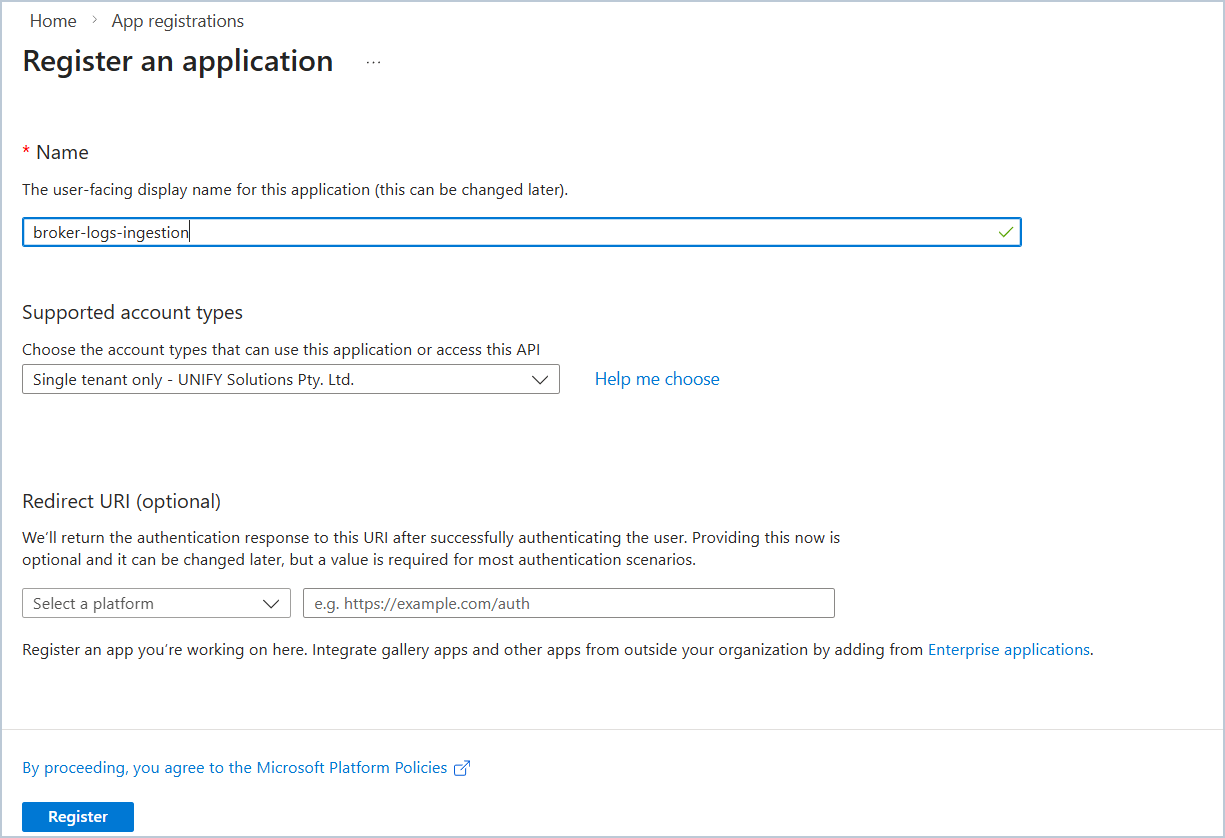
- Fill in the application name; no need for a Redirect URI.
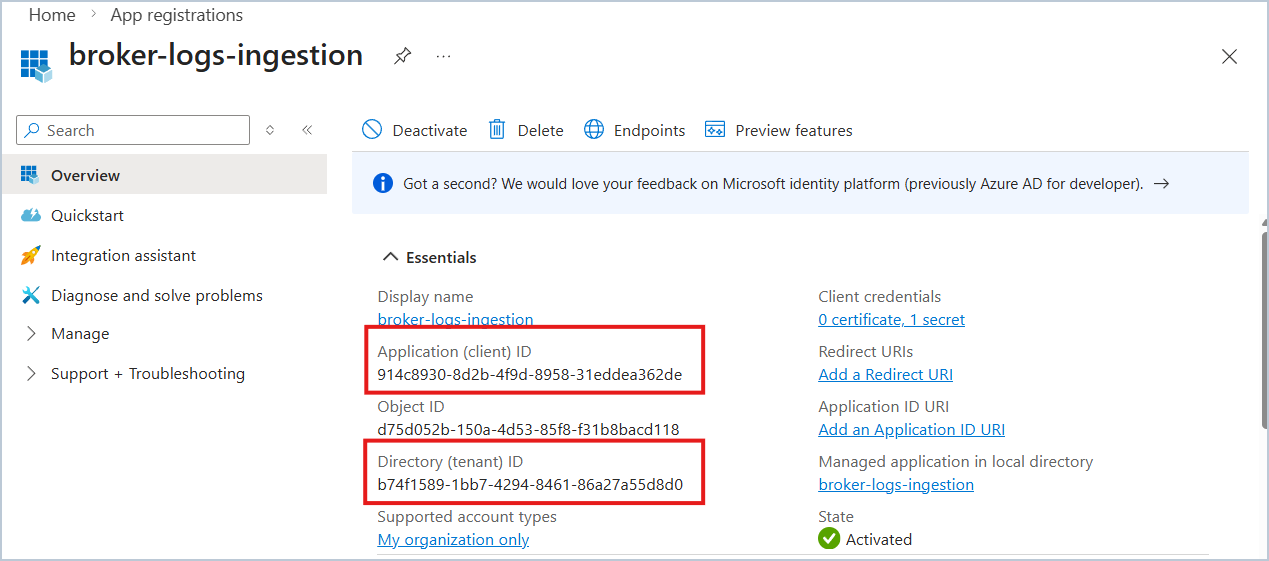
- After registering the application, take note of the Application (client) ID and the Directory (tenant) ID, which we will need when setting up the audit writer.
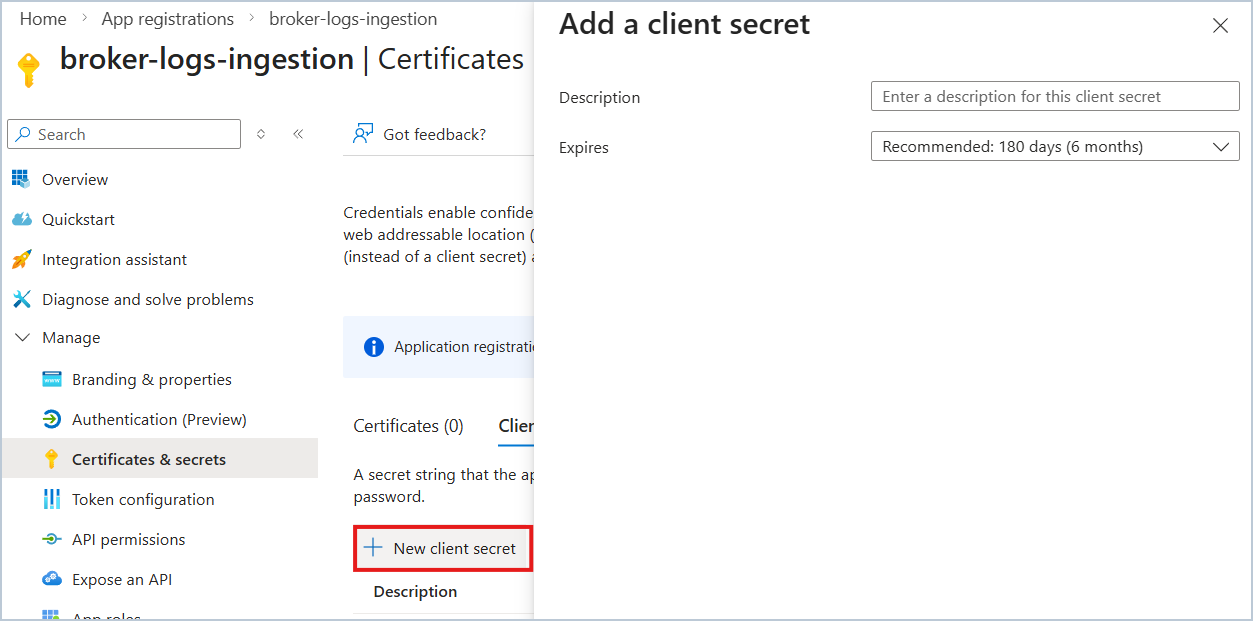
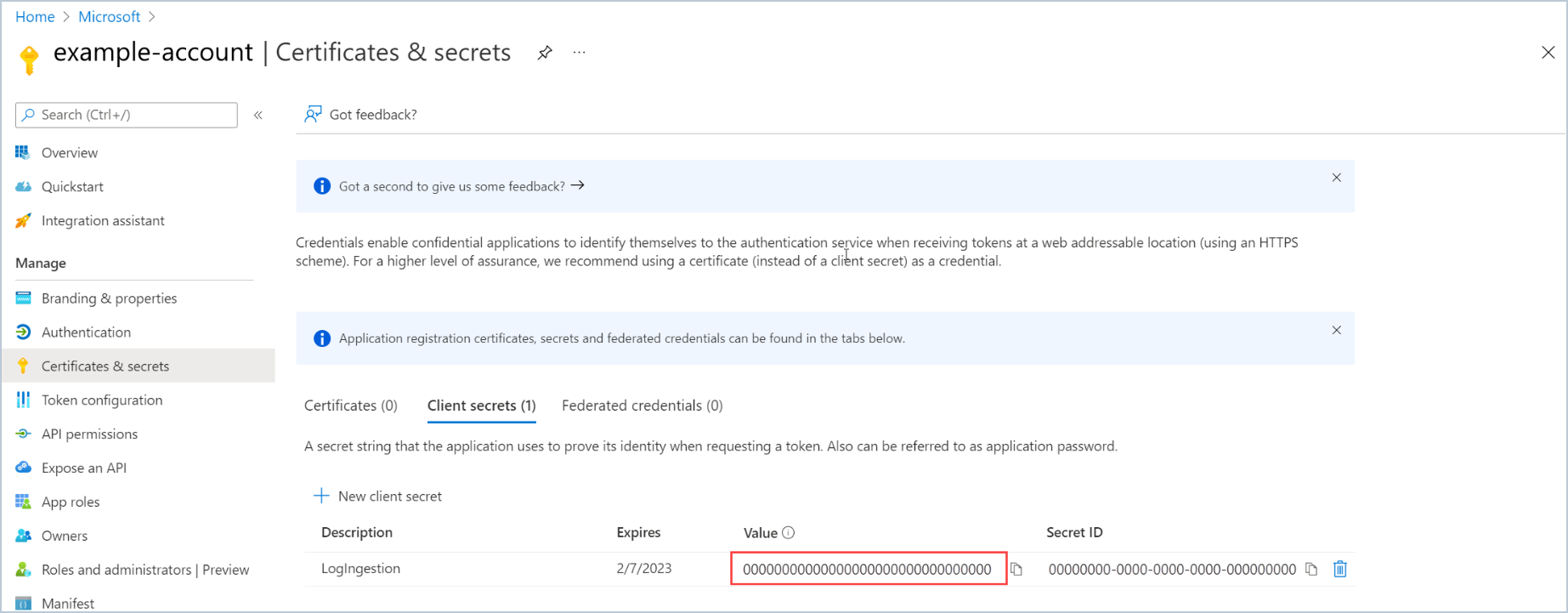
- Generate the application client secret, and take note of the secret value.Select Certificates & secrets > New client secret
Create Data Collection Endpoint (DCE)
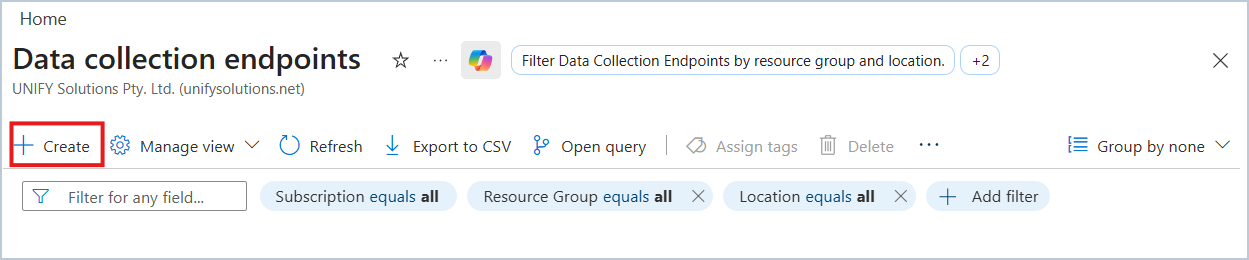
- Create the data collection endpoint by selecting Monitor > Data Collection Endpoint > Create
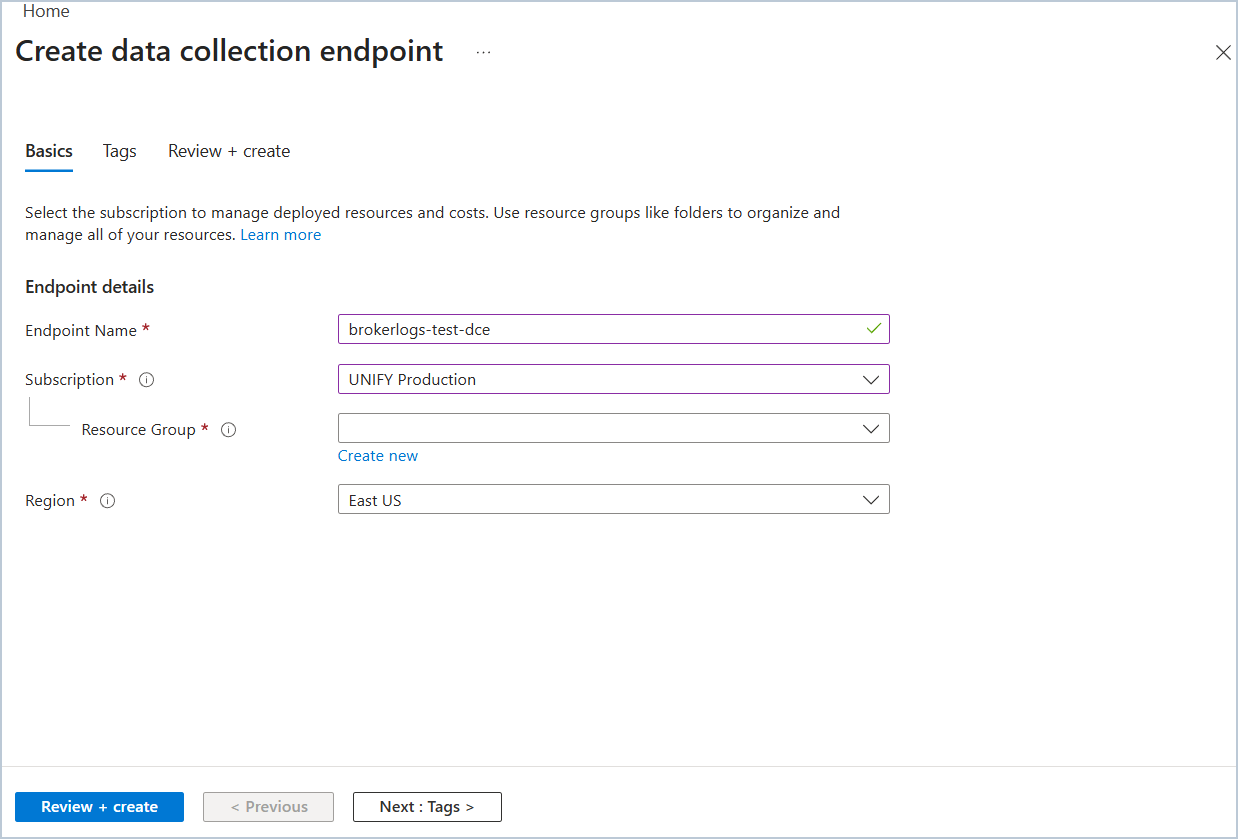
- After the creation, take note of the Logs Ingestion from the overview page.
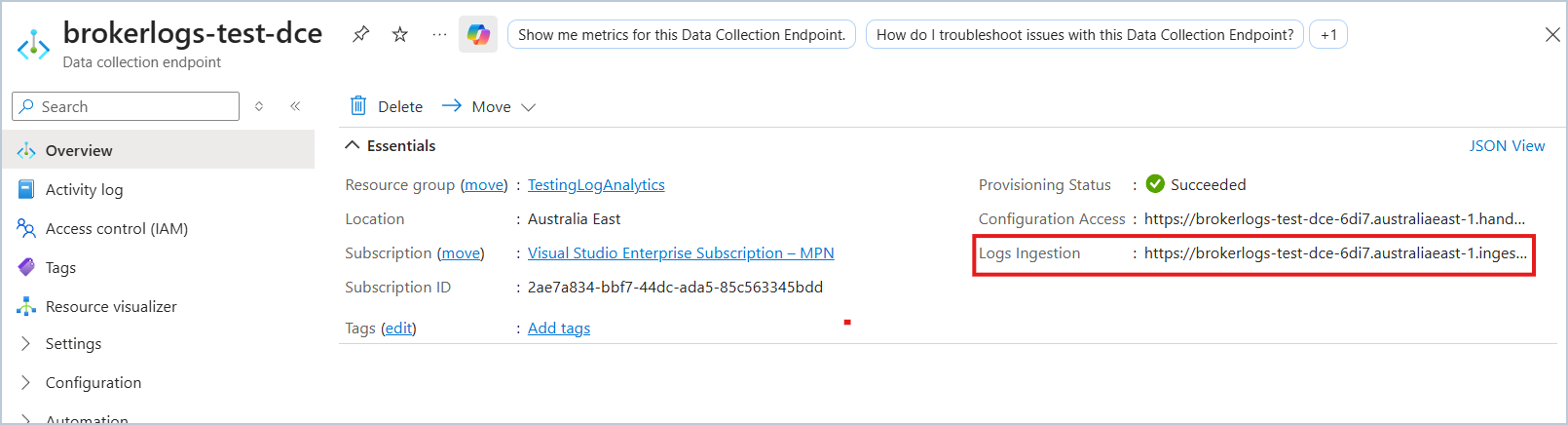
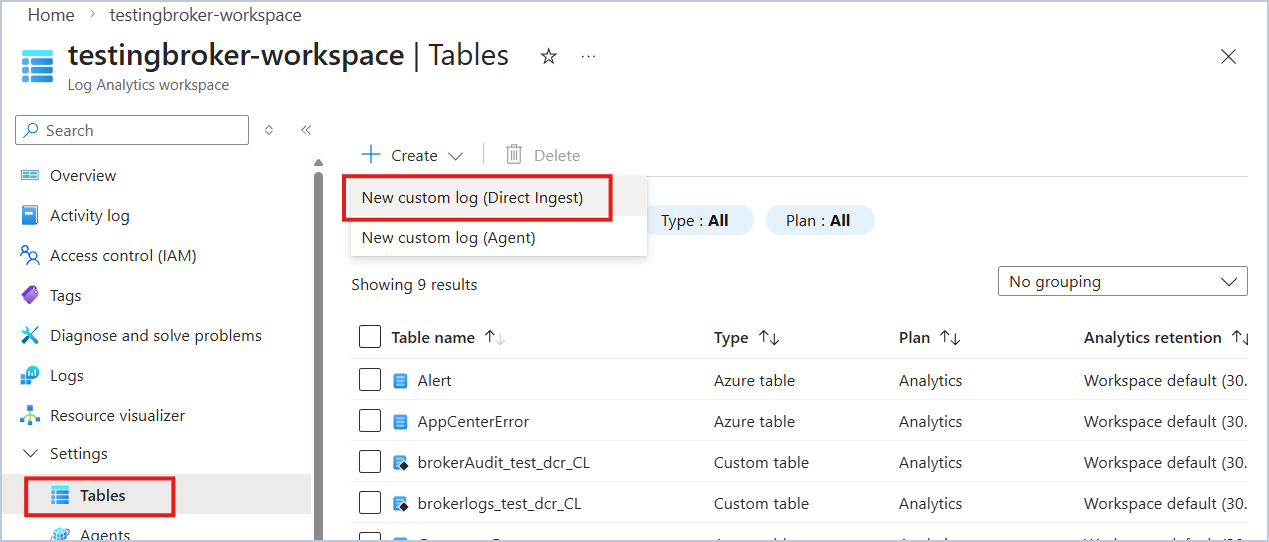
Create a custom table in the Log analytics workspace (DCR-based)
On the Log Log Analytics workspaces menu, Select Tables > New custom log (DCR based)
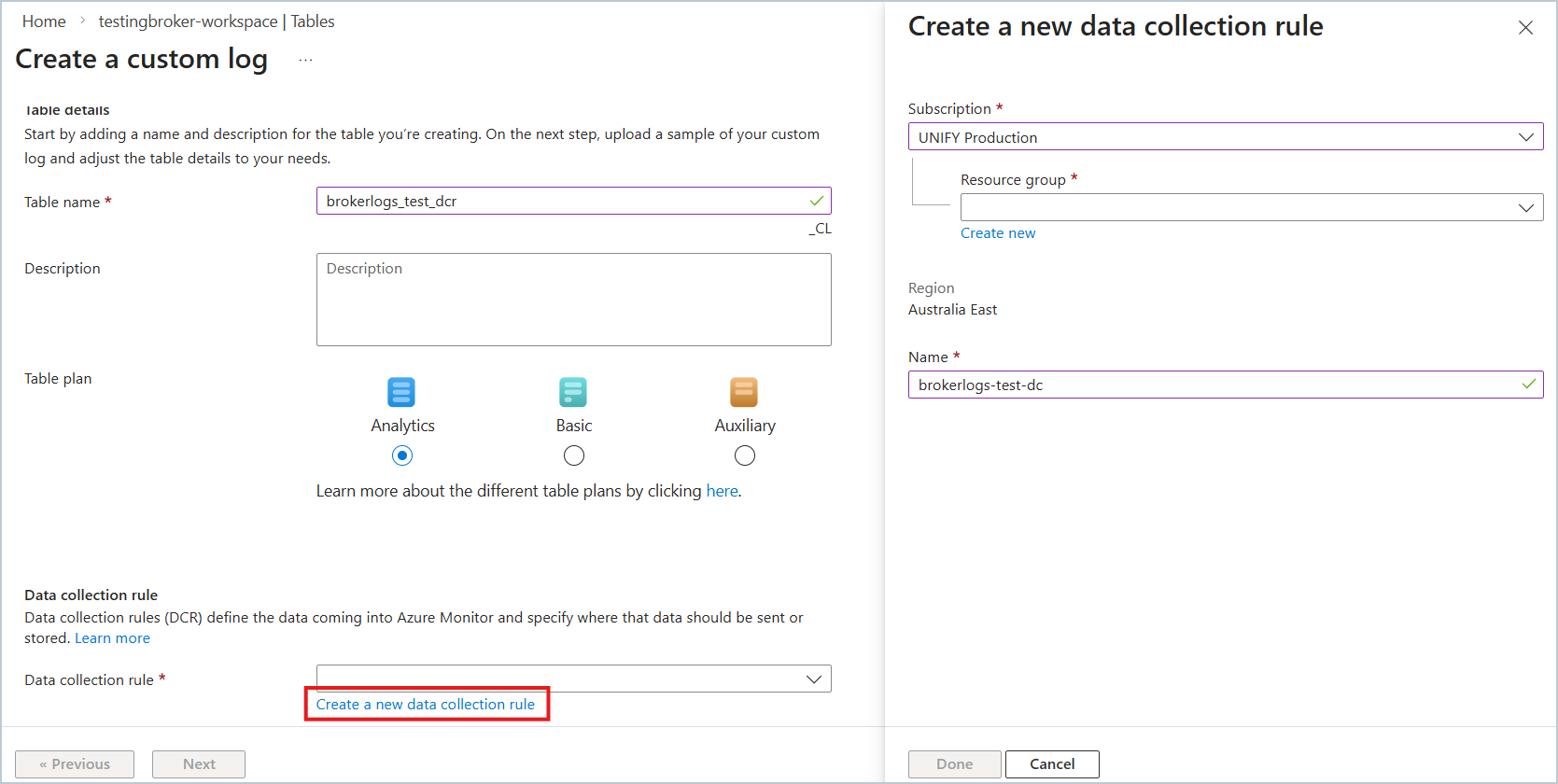
Enter the table's name, and select Create a new data collection rule.
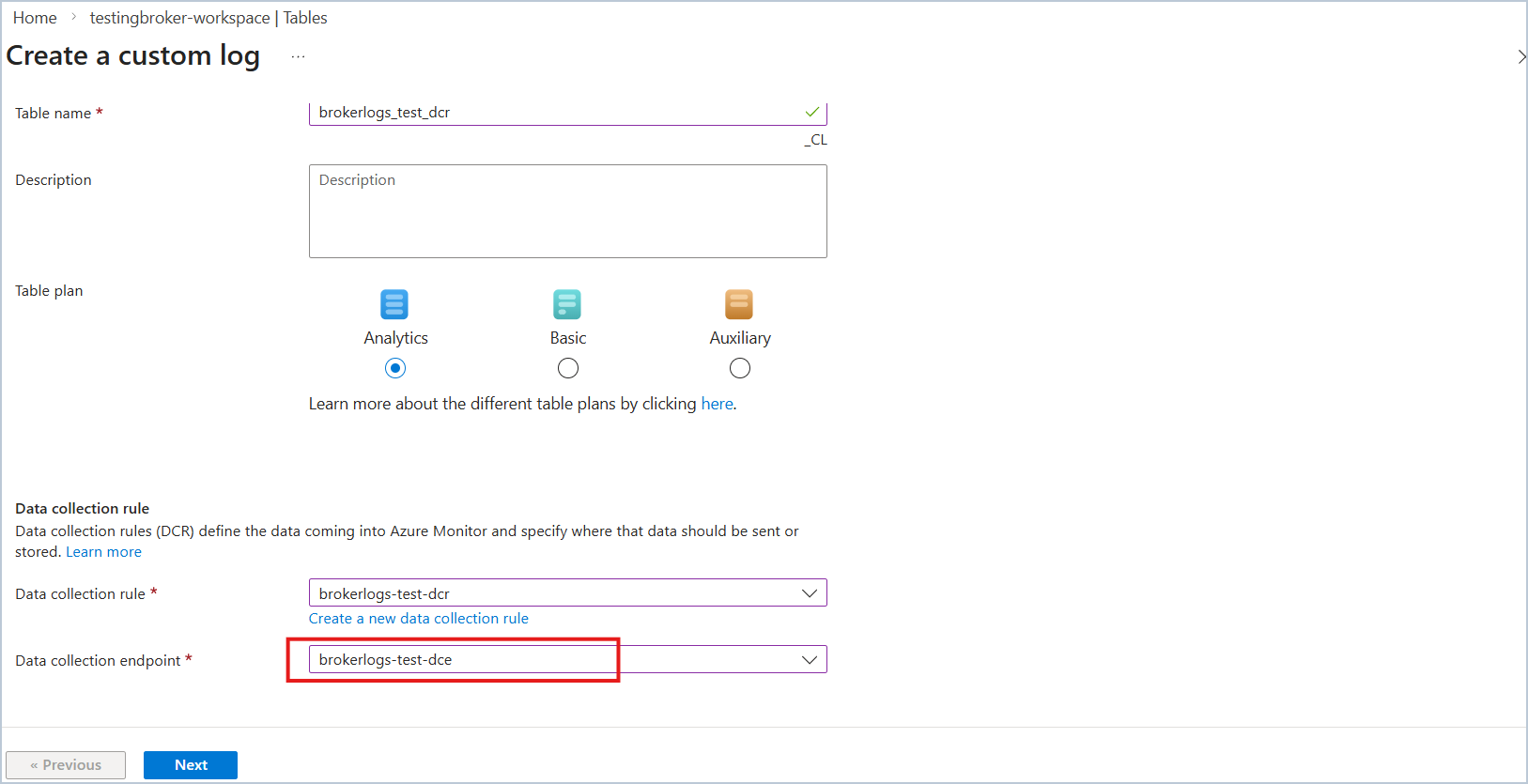
Select the Data collection endpoint that we created previously and select Next.
Now, we need to upload a file with a sample JSON of what a typical audit log entry from Unify Connect looks like. This will allow Azure to infer and configure the table schema.Use the JSON sample below of an audit log entry.
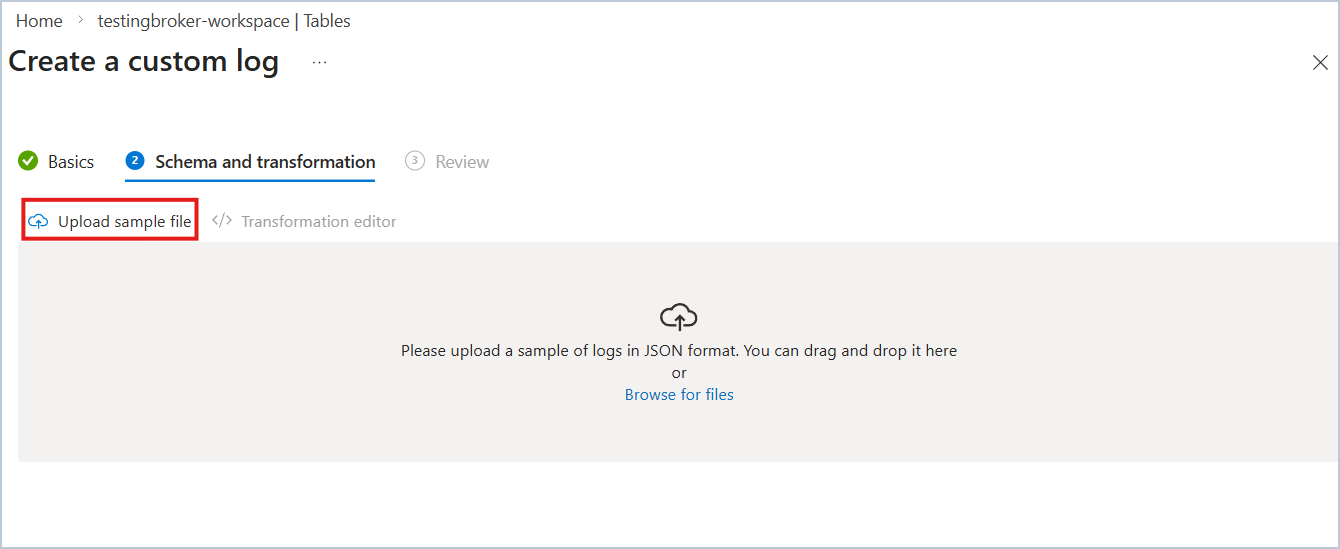 json
json{ "Id": "838d8fdc-092e-4ef1-9b5b-37f0a240fc90", "LogTime": "2026-03-04T11:25:00Z", "Initiator": {}, "Target": {}, "Action": {}, "Observer": {}, "Scope": [] }After successfully uploading the JSON sample, we need to add a transformation to create a
TimeGeneratedmapping it from our JSON payload. Select Transformation Editor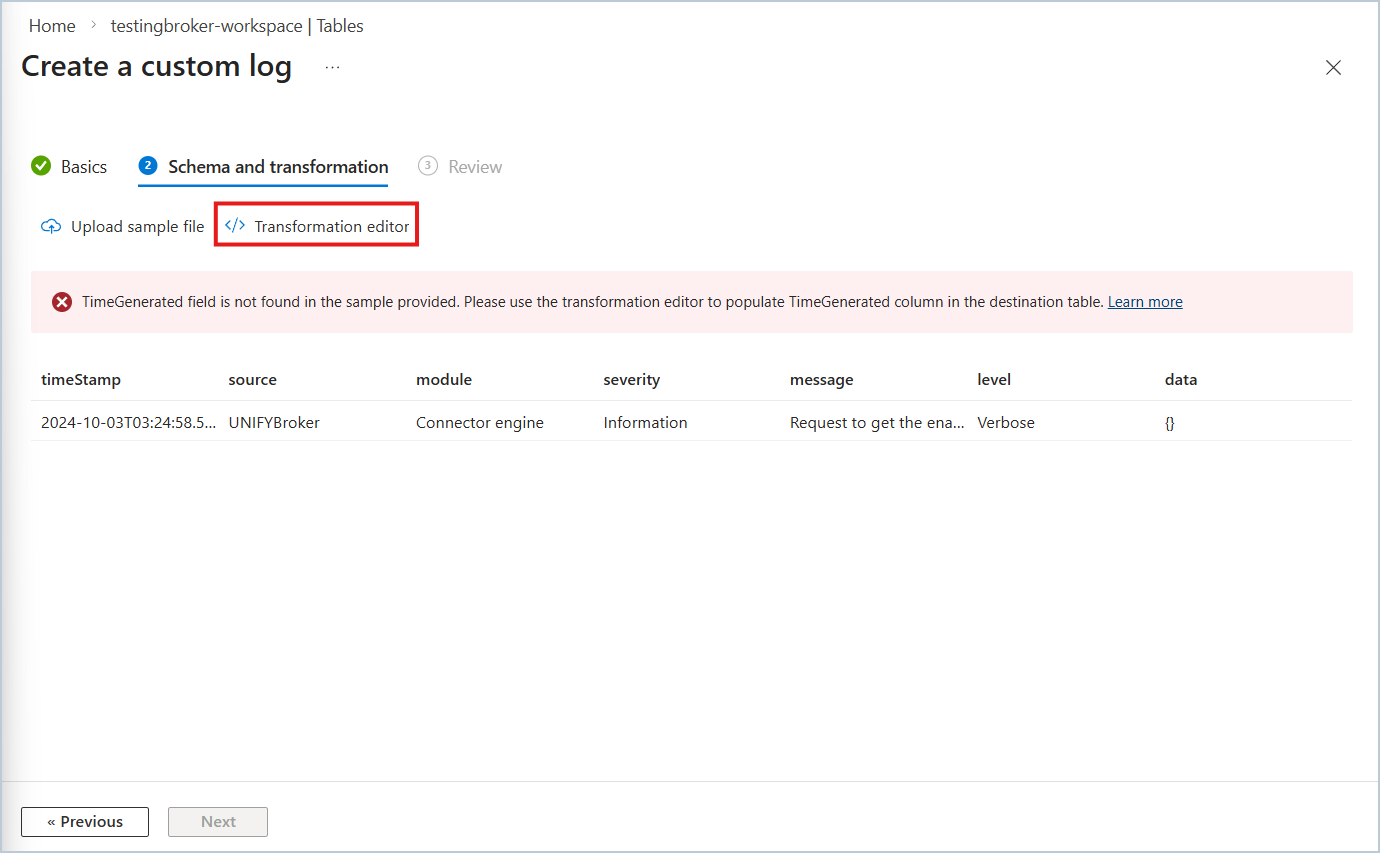
Add the following transformation and select Run to run the transformation, and then select Apply
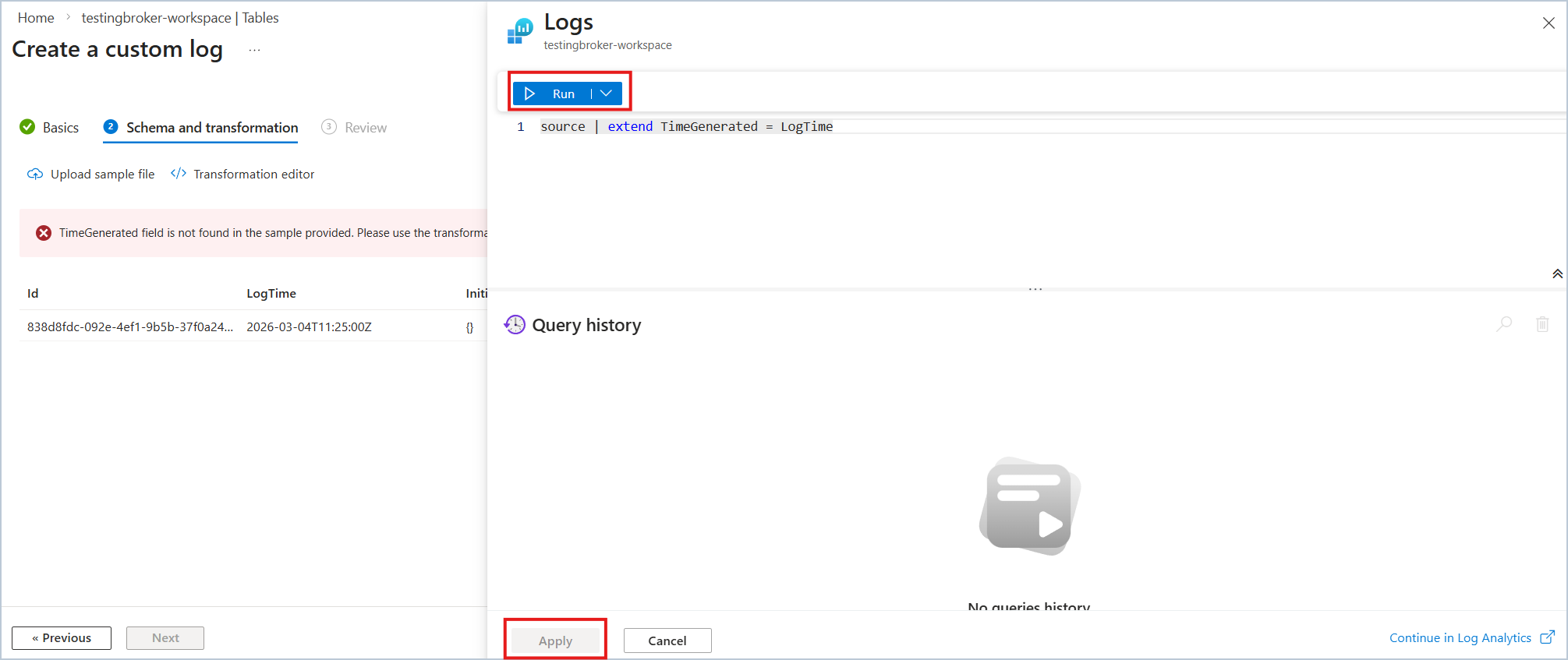 kql
kqlsource | extend TimeGenerated = LogTimeSelect Create to finalize the table creation
Now, the new DCR can be found listed under Monitor > Data Collection Rules. Take note of the immutable DCR ID as it is used to set up the audit writer.

Role assignment on the DCR for that service principal
Now, we need to give the application permission to use the DCR, so that our audit writer can send data to the new DCE and DCR.
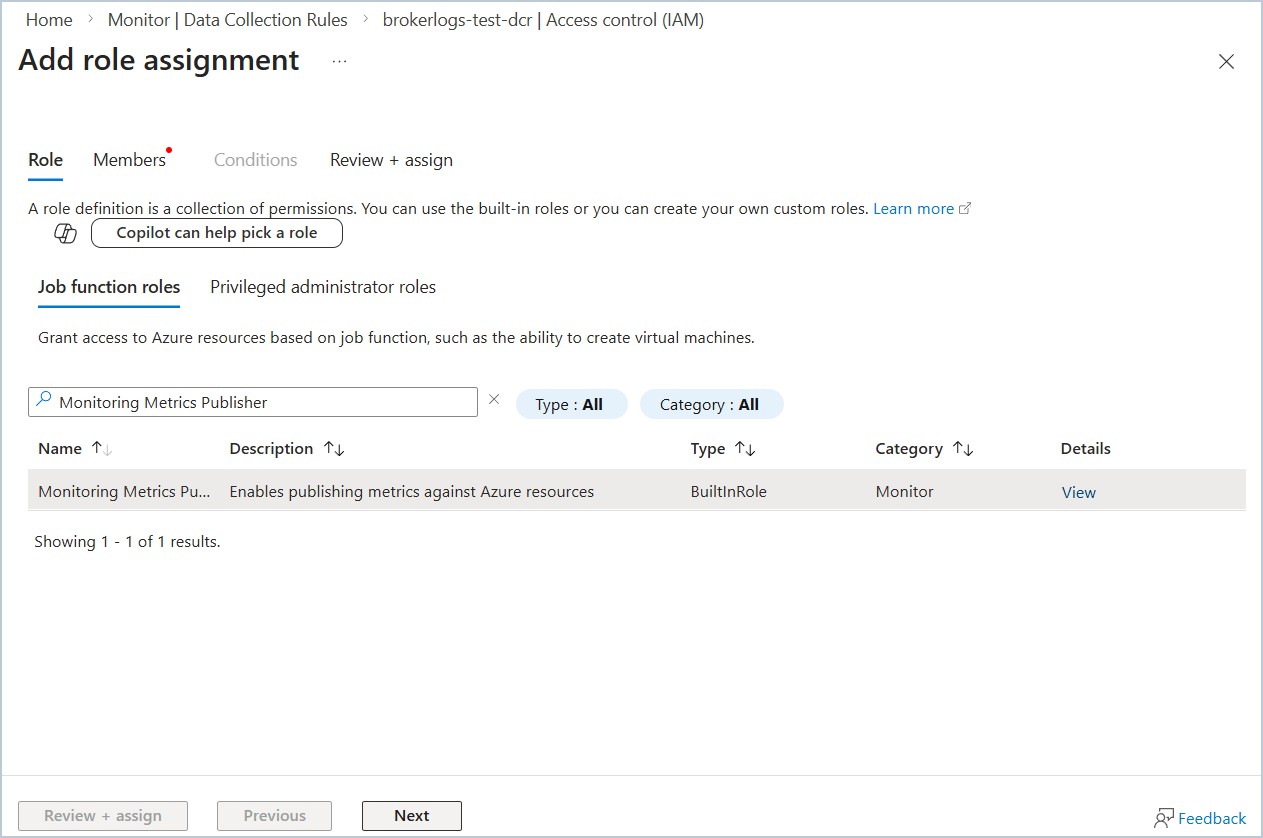
- From Monitor > Data Collection Rules, go to the new DCR page and select Access Control (IAM) > Add role assignment.
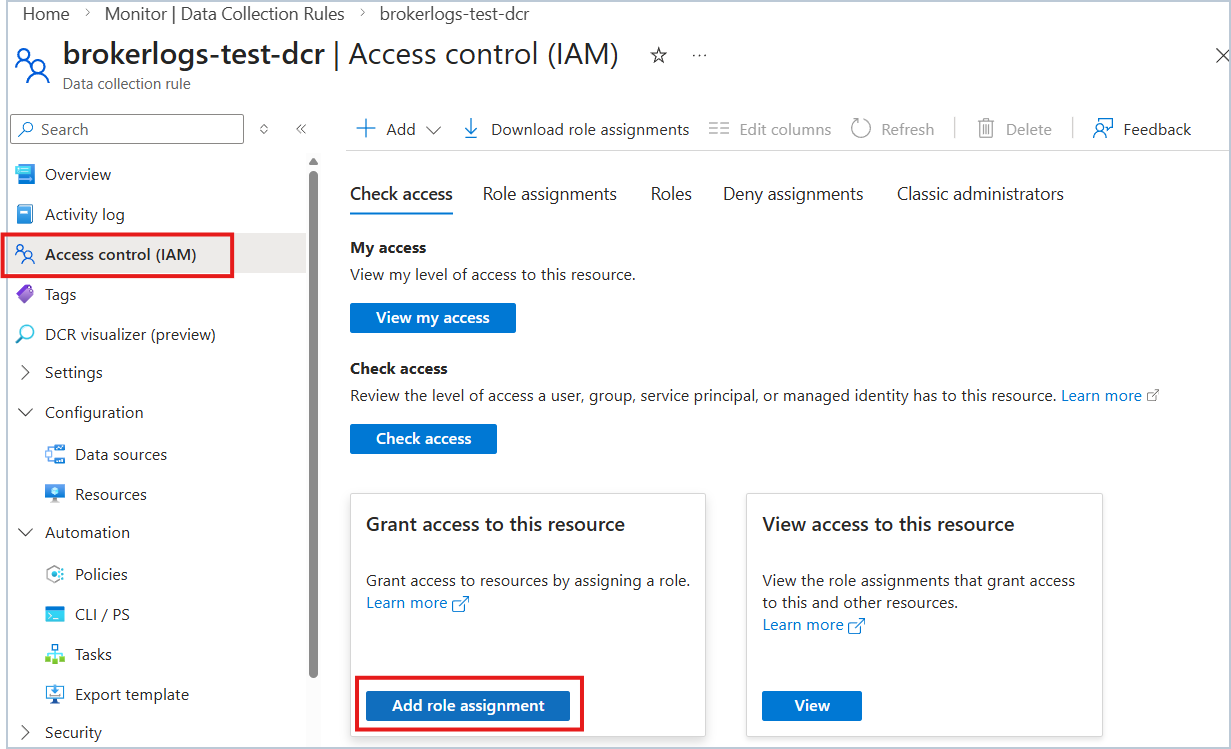
- Select Monitoring Metrics Publisher > Next
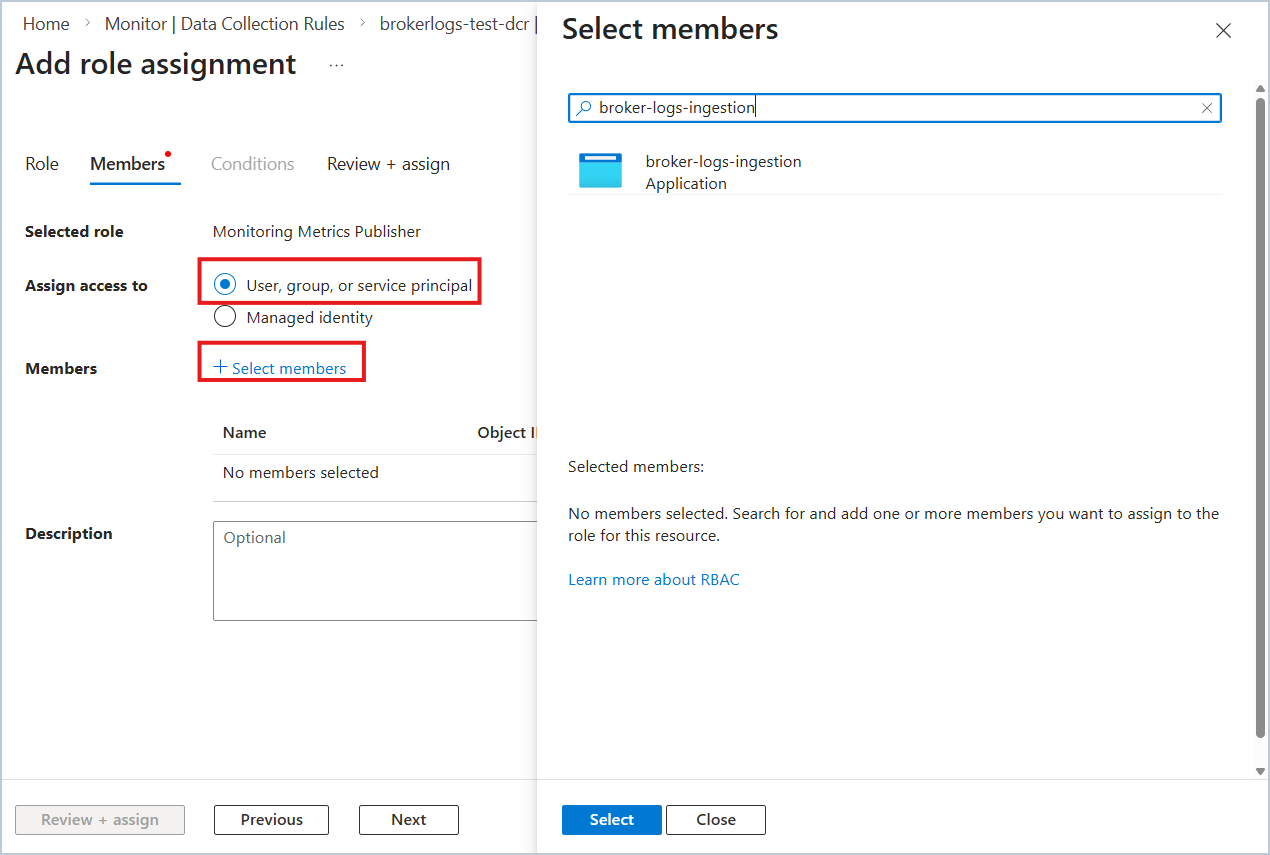
- Select User, group, or service principal for Assign access to, and select Select members. Add the application that we previously created.
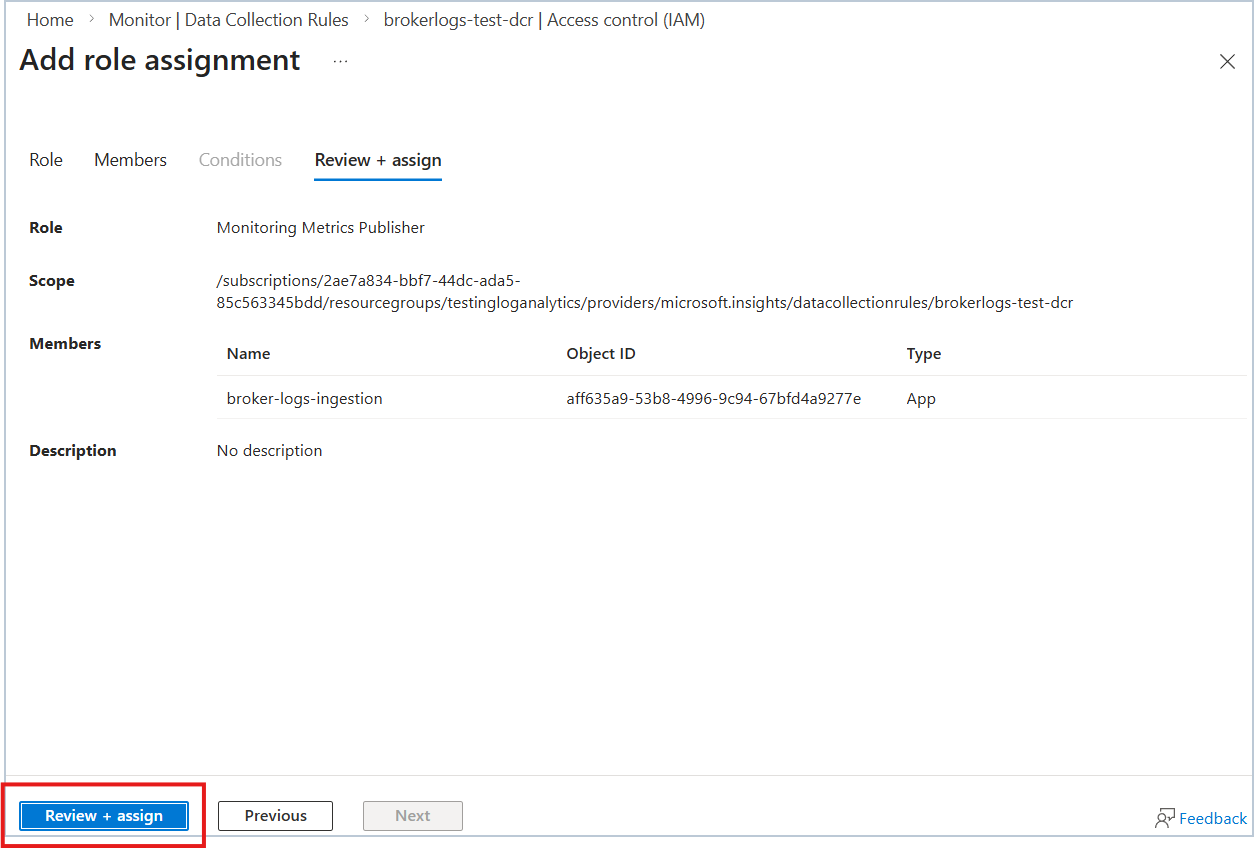
- Review and assign the application role.
Configure Azure Log Analytics Audit Writer for use with DCR API
- Configure the audit writer in Unify Connect and set Log Analytics Writer Type to DCR API.
- Set theDCE logs ingestion URL found in the DCE overview page to Data Collection Endpoint.
- Set the Immutable ID of the DCR to the Data Collection Rule ID.
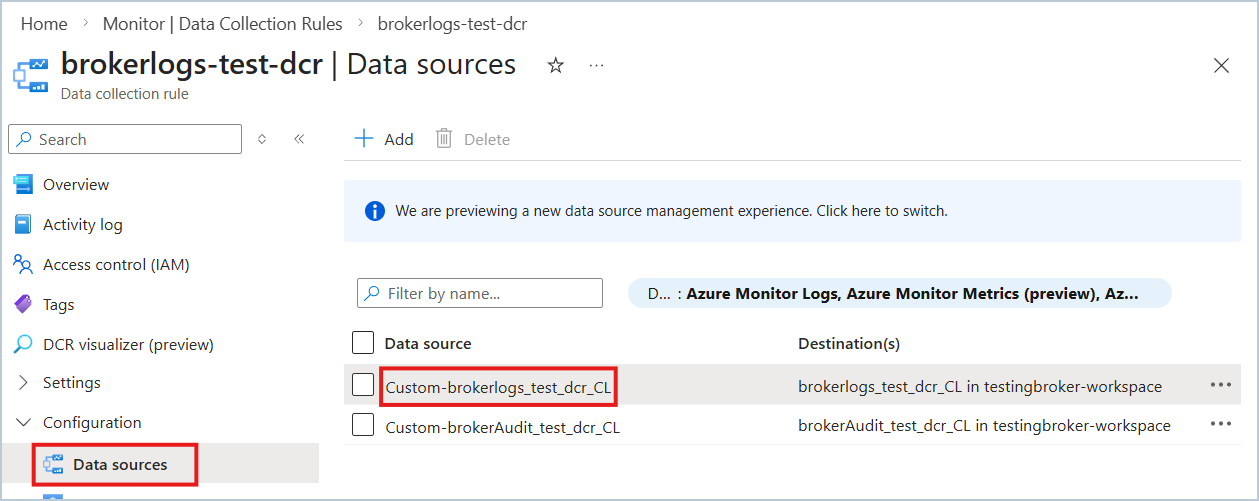
- Set the DCR stream name. This can be found in Azure portal on DCR page under Data Sources, then choose the data source name corresponding to the workspace table to be used for logging.
- Set the Auth Client ID, Auth Client Secret, and Auth Tenant ID found in the application registration overview page.