APIs
Overview
The UNIFYConnect service can be configured and operated programmatically with the use of REST API endpoints.
Usage
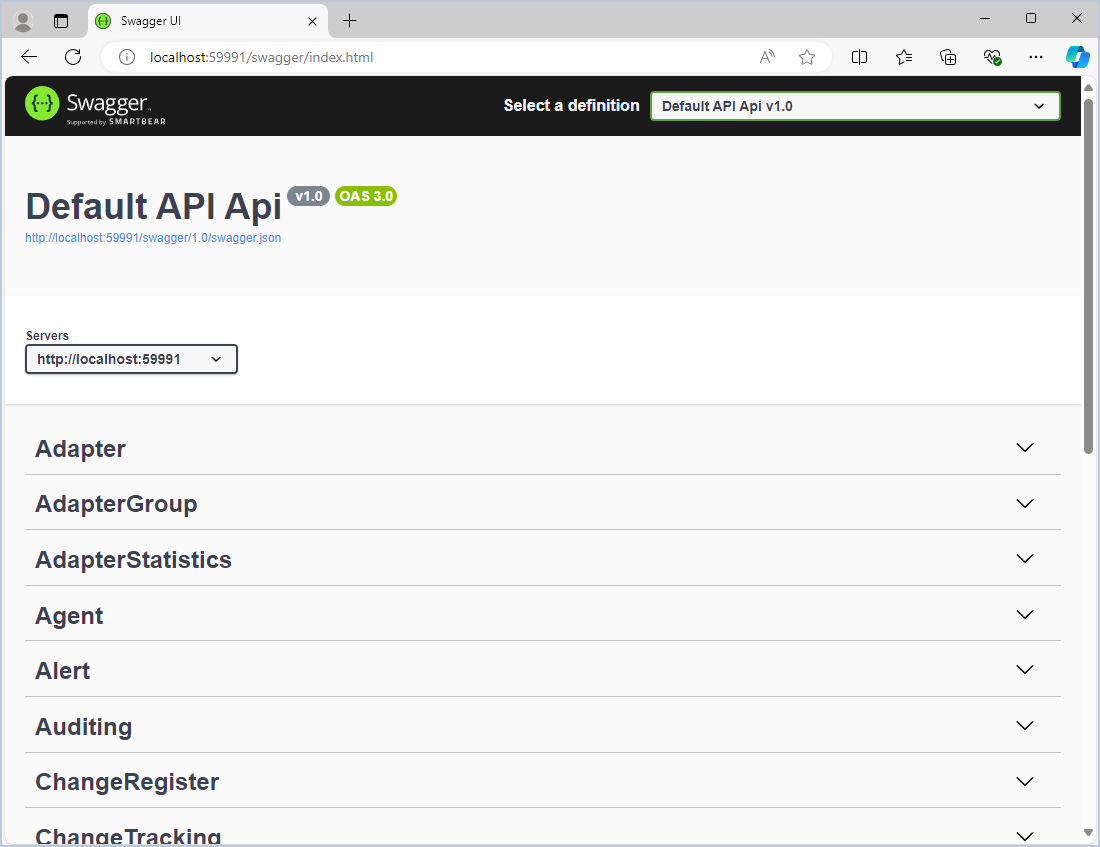
The configured API endpoints can be viewed from the Settings page. The documentation for an API endpoint can be viewed by visiting /swagger underneath the API root address. For example:
Configured API address: http://localhost:59991
API documentation address: http://localhost:59991/swagger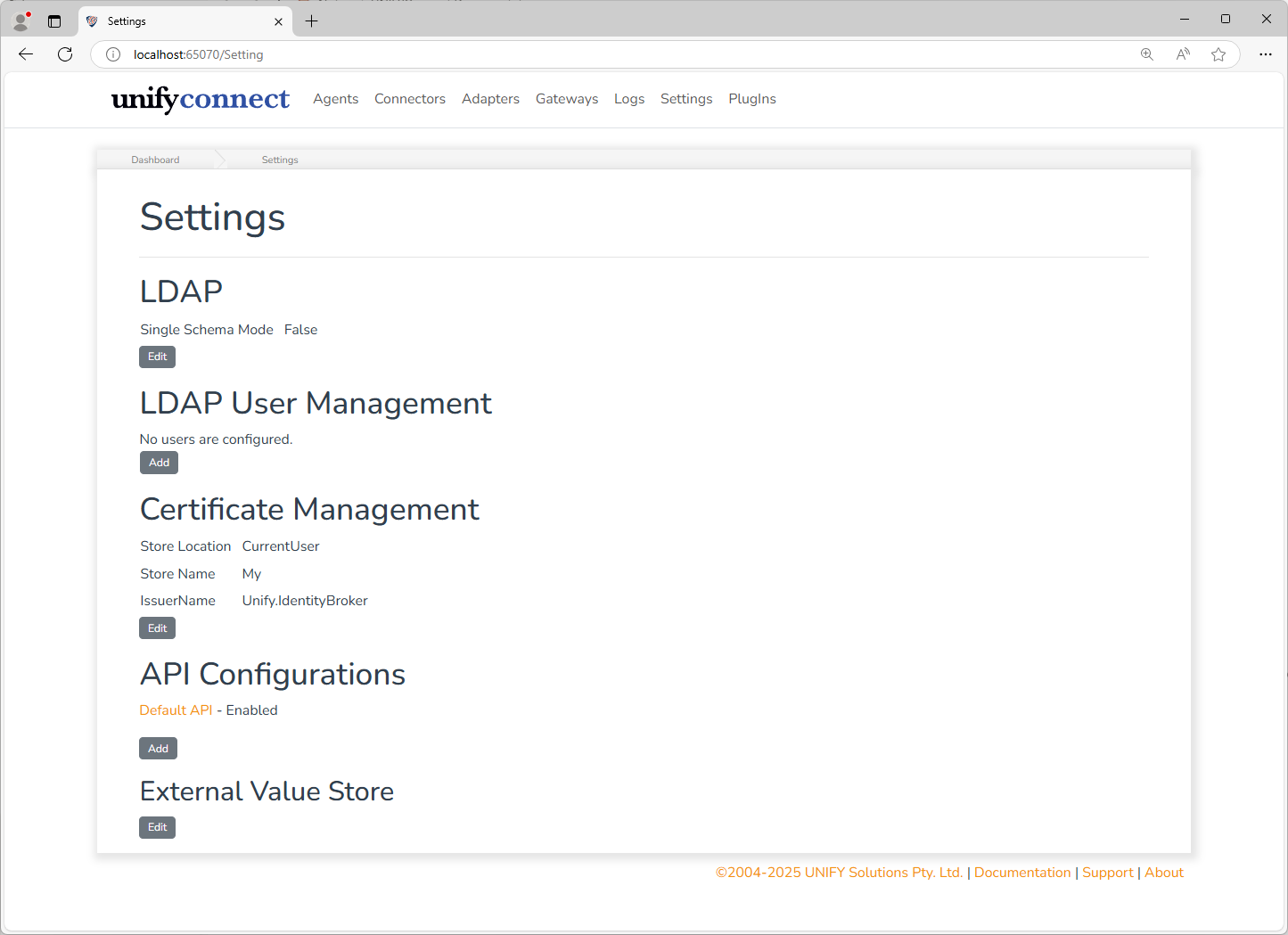
Configuration
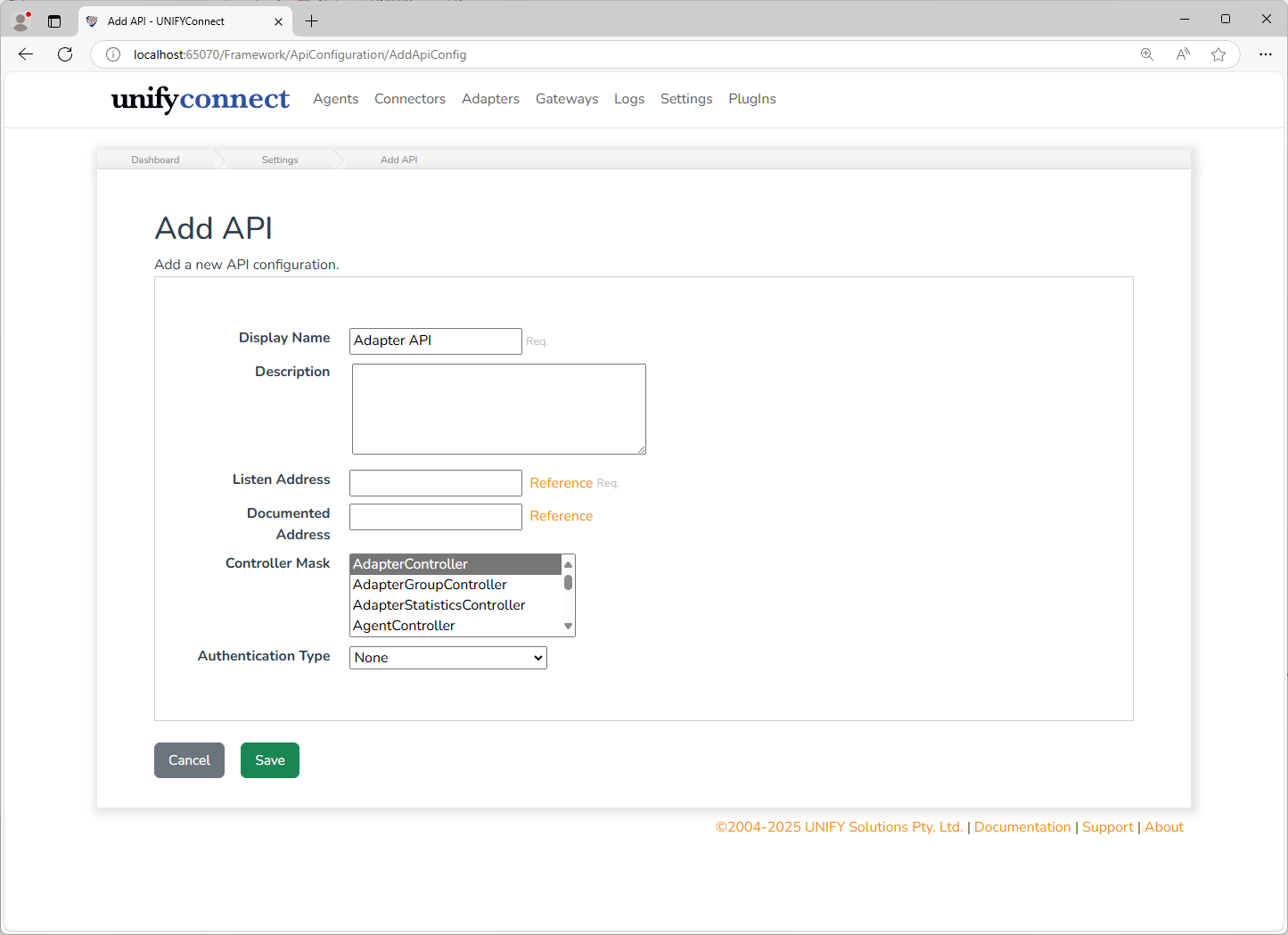
API endpoints can be added by clicking the Add button underneath API Configurations on the Settings page. An API requires the following by way of configuration:
| Description | Supports Reference | Name |
|---|---|---|
| Listen Address | yes | The base address the API service will listen on. The special IP 0.0.0.0 can be used to listen on all IPs. |
| Documented Address | yes | The base address the Swagger documentation will use. This is only needed when using an invalid listen address such as 0.0.0.0, or if the listen address is not accessible from where the Swagger documentation needs to be accessible from, ie listen address is localhost, but is sitting behind a reverse proxy. |
| Controller Mask | no | The collection of controllers that should be operable by this API. Use Ctrl+Click to select multiple controllers. If no controllers are selected, no controller restrictions will be placed on the API. |
| Authentication Type | no | The type of authentication to use to secure the API. |
Authentication
None
No authentication is required to connect to an API with the Authentication Type set as None.
Azure Active Directory Bearer
Requires prospective connections to the API to be authenticated against an account in an Entra (formerly Azure Active Directory) instance. Selecting this Authentication Type requires configuring an Azure AD registered application.
| Description | Supports References | Name |
|---|---|---|
| Tenant | yes | The ID of the Entra (formerly Azure Active Directory) tenant |
| Audience | yes | Azure Application ID |
Confirming Changes
WARNING
When changes are made to the configuration of an API, a warning appears on the Settings page with a Confirm Change button. Changes to APIs must be confirmed by clicking the Confirm Change button, otherwise, the change will be rolled back after two minutes. This is to prevent users from accidentally locking themselves out of control of the service by accidentally deleting or otherwise misconfiguring an API.
Configure Entra application
Configure an Entra registered application for use with the configured API by following the steps below:
Register an Azure application using the steps in Register an Azure APP.
Create app roles as per the steps specified in App roles. Ensure that the role values precisely match the values listed below. Create a role for each value.
- Read
- Write
- Full
- Admin
Assign the required roles to a client application by following the instructions in Assign App Roles to Applications.
Grant admin consent to the assigned roles.
Create a client secret using this link Add a Client Secret.
To obtain an access token for calling the API, send the POST request below using the client secret generated in the previous step.HTTP
httpPOST /{tenant}/oauth2/v2.0/token HTTP/1.1 //Line breaks for clarity Host: login.microsoftonline.com:443 Content-Type: application/x-www-form-urlencoded client_id={application (client) ID} &scope={API Application ID}/.default &client_secret={client secret} &grant_type=client_credentials
curl -X POST -H "Content-Type: application/x-www-form-urlencoded" -d 'client_id={application (client) ID}&scope={API Application ID}%2F.default&client_secret={client secret}&grant_type=client_credentials' 'https://login.microsoftonline.com/{tenant}/oauth2/v2.0/token'