Installing the UNIFYConnect Service
Overview
UNIFYConnect is provided as an installation ZIP file containing the application binaries and setup scripts. The service can run as a console application on Windows or Linux, or as a Windows service.
Installing UNIFYConnect
CHECK
On Windows, ensure the ZIP file is not blocked; otherwise, the extracted files will also be blocked. Select Unblock in the ZIP file's Properties before extracting it.
Download the package that matches the host architecture (win-x64, win-arm64, linux-x64, or linux-arm64) and extract it to the desired location. Ensure that the account running UNIFYConnect can read, write, and execute files in this location.
NOTE
Do not extract a new installation into the same location as an existing installation. We recommend keeping the service version in the destination folder as a way to differentiate.
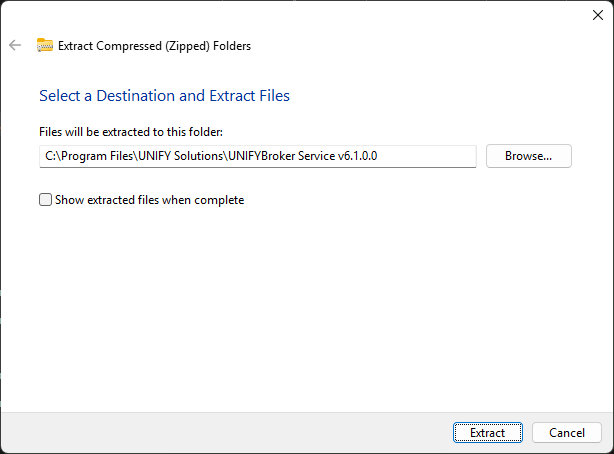
Create a Microsoft SQL Server or PostgreSQL database, then update the UNIFYConnect extensibility configuration to target the new database.
On Windows, start UNIFYConnect as a console application by running:
%InstallDir%\Services\Unify.IdentityBroker.Service.Console.exeOn Linux, make the service and PowerShell worker executables executable, then start the service from the Services directory:
cd /opt/unifyconnect/Services
chmod +x Unify.IdentityBroker.Service.Console
chmod +x Workers/PowerShell/Unify.IdentityBroker.PowerShellWorker
./Unify.IdentityBroker.Service.ConsoleReplace /opt/unifyconnect with the installation path.
Running UNIFYConnect with systemd
For a production Linux deployment, run UNIFYConnect under a service manager and use a dedicated account with write access to the installation's configuration, logs, and working directories. For example, create /etc/systemd/system/unifyconnect.service with:
[Unit]
Description=UNIFYConnect
After=network.target

[Service]
Type=simple
User=unifyconnect
WorkingDirectory=/opt/unifyconnect/Services
ExecStart=/opt/unifyconnect/Services/Unify.IdentityBroker.Service.Console
Restart=on-failure

[Install]
WantedBy=multi-user.targetAdjust the account and paths for the installation, then reload systemd and enable the service:
sudo systemctl daemon-reload
sudo systemctl enable --now unifyconnect
sudo systemctl status unifyconnectInstalling UNIFYConnect as a Windows Service
Navigate to the %InstallDir%\Setup directory and run the install-windows-service.ps1 script with administrator privileges. This script has the following parameters relevant to installation:
| Parameter | Type | Required | Description |
|---|---|---|---|
| ServiceAccountName | String | Yes; prompted for if omitted | The name of the service account under which the Windows service will run. Use the down-level logon name format (for example, server01\brokerAcc). |
| ServiceAccountPassword | SecureString | Yes, will be prompted for if not provided | The password for the service account the Windows service will run as. |
| InstallationPath | String | No; normally omitted | The path to the UNIFYConnect installation directory. If omitted, the script uses the expected path relative to its default location. |
| NoStart | - | No | Do not attempt to start the service after creation. |
The PowerShell execution policy may need to be changed to be able to run the script.
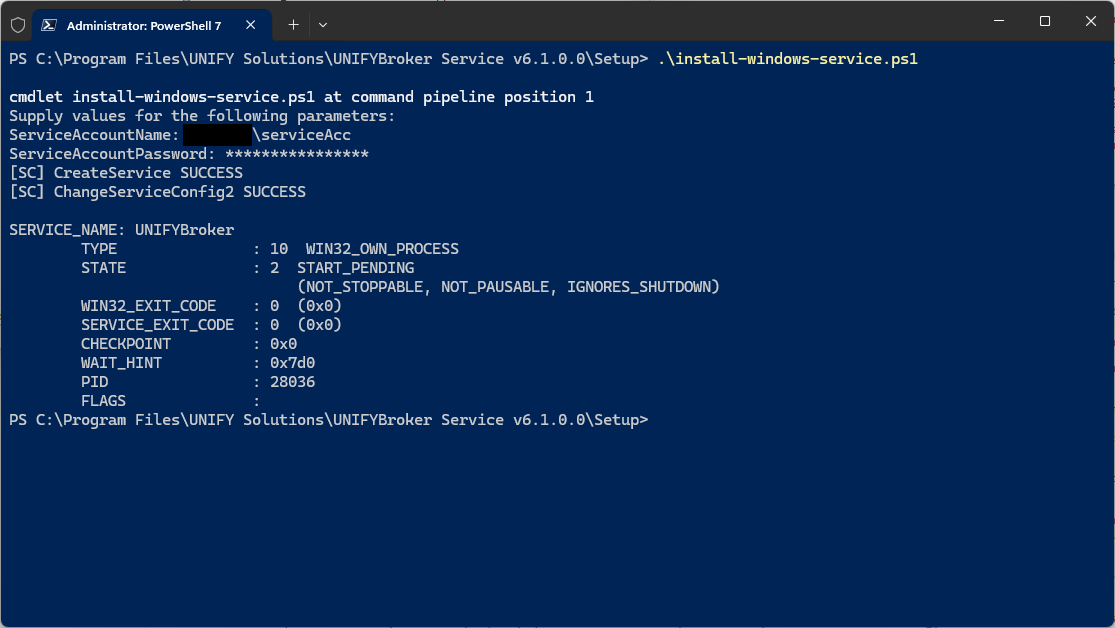
Uninstalling the UNIFYConnect Windows Service
From the %InstallDir%\Setup directory, run the installation script with the Uninstall switch and administrator privileges:
.\install-windows-service.ps1 -Uninstall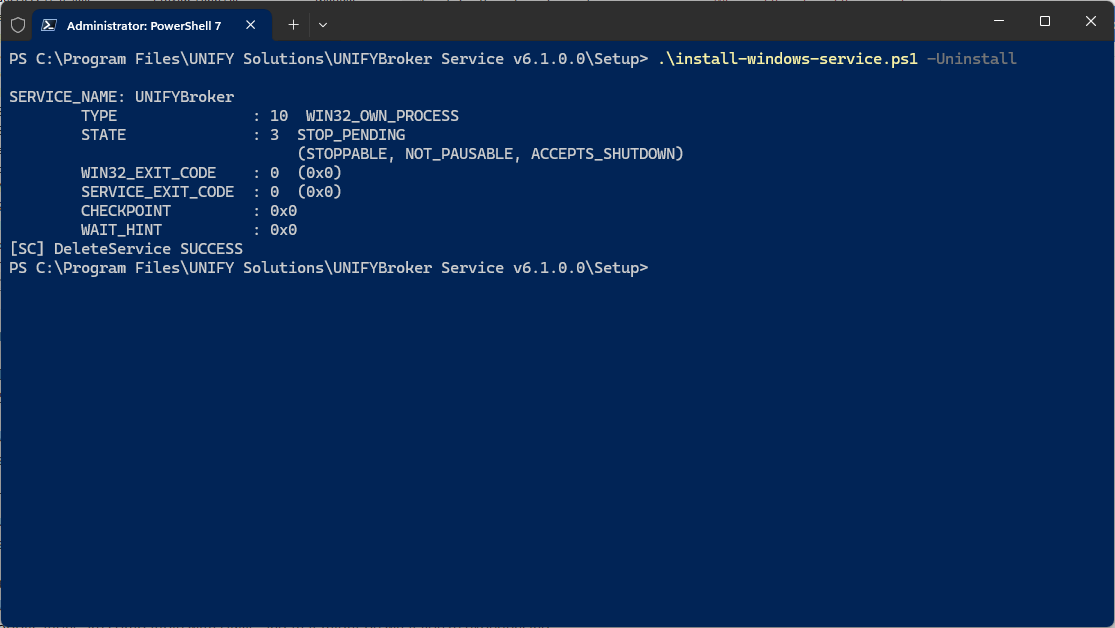
Starting the Windows Service
If the Windows service is not started by the installation script, open the Services window from Administrative Tools, or run services.msc from a command prompt. Find the UNIFYConnect service, and start it.
If the Windows service fails to start, ensure that UNIFYConnect can be run as a console application (described above) without issue, and the service account has been given the correct permissions to the installation directory.
Verifying Installation
The UNIFYConnect service can be verified by opening a browser to http://localhost:59991/swagger/index.html. The UNIFYConnect API documentation should be displayed.
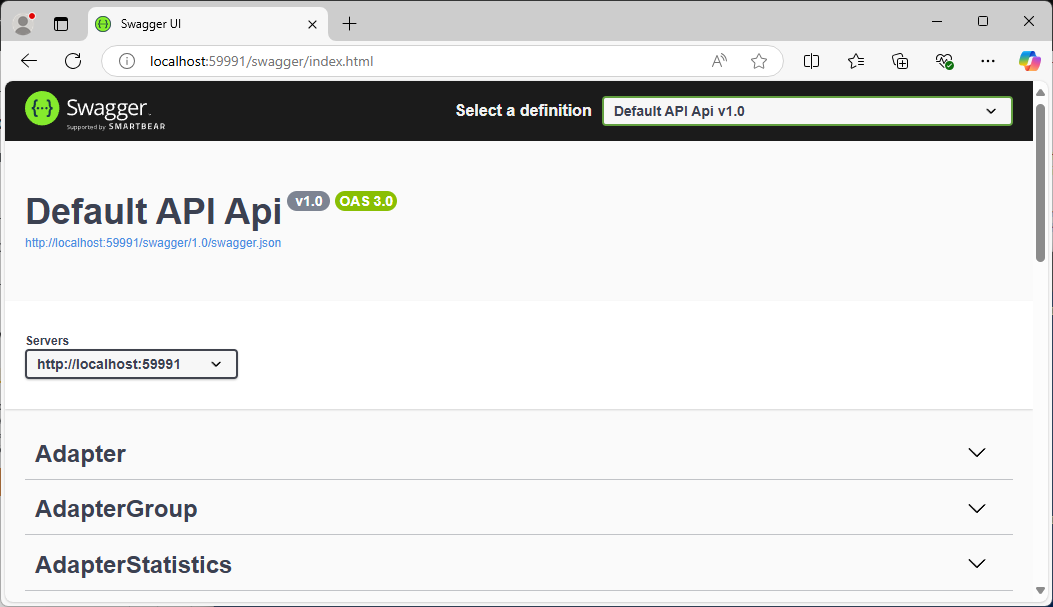
The UNIFYConnect service is now successfully installed. Install the UNIFYConnect Web Component now, if needed.
Troubleshooting
If the preceding steps did not work:
- Review the installation steps.
- Review the installation prerequisites.
- Open a support ticket.