Configuring Microsoft Distributed Transaction Coordinator
What is the Microsoft Distributed Transaction Coordinator?
The Microsoft Distributed Transaction Coordinator (MS DTC) is a service available in all operating systems supported by UNIFYBroker. This service permits the coordination of atomic transactions across multiple servers. It is disabled by default.
Why should UNIFYBroker be configured to use it?
UNIFYBroker is capable of using the Microsoft .NET TransactionScope object in order to define atomic data transactions. Having the transactions permits UNIFYBroker to ensure a transaction is successful with all data connections before allowing it to be committed, for connected systems that subscribe to the Microsoft Distributed Transaction Coordinator. Since Microsoft .NET Framework v2.0, Microsoft have recommended the use of this object for transaction management. The object can transparently elevate a transaction to the MS DTC server.
How is it configured?
Each server that is involved in UNIFYBroker data transactions must have MS DTC enabled. In cases where UNIFYBroker's database is stored on a SQL Server instance on the same server as UNIFYBroker, that means MS DTC is only required on that machine, and there are no communication issues. When SQL Server is on another server, or in a cluster, then MS DTC must be enabled on both the UNIFYBroker server and the SQL Server server or cluster, and that the appropriate firewall rules must be in place.
Enabling MS DTC in UNIFYBroker
MS DTC is disabled by default. To enable, edit the DataEngine.config.json file to set the enableTransactions value to true so that it looks like the following:
{
   "$version": "1.0",
   "dataConnections": [
      {
         "$version": "1.0",
         "name": "sql",
         "repository": "Unify.IdentityBroker",
         "type": "SqlServer",
         "connectionString": "Data Source=LOCALHOST;Initial Catalog=Unify.IdentityBroker;Integrated Security=True",
         "secureConnectionString": null,
         "securePassword": null,
         "enableTransactions": true
      }
   ]
}Enabling MS DTC in Windows
In order to enable MS DTC, you must be able to create a desktop session on the target server(s) as a local administrator.
NOTE
It is possible to enable MS DTC in other ways, including remotely, but such a description is outside the scope of this guide.
Open the Local Services control panel snap-in and locate Distributed Transaction Coordinator as shown in the screenshot below.
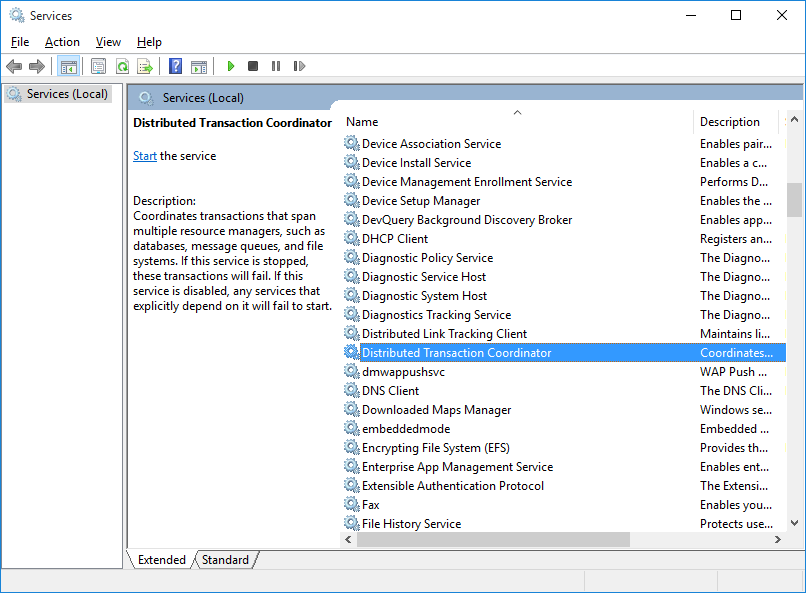
If the service is not started, start it now. It may be prudent to make the service start automatically to ensure it is available if the server needs to be restarted.
Configuring MS DTC
- Open the Component Services snap-in.To open Component Services, click Start. In the search box, type dcomcnfg, and then press ENTER.
- Expand the console tree to locate the DTC (for example, Local DTC) for which you want to enable Network MS DTC Access.
- On the Action menu, click Properties.
- Click the Security tab and make the following changes:
- In Security Settings, select the Network DTC Access check box.
- In Transaction Manager Communication, select the Allow Inbound and Allow Outbound check boxes.
- Click OK.
- Restart the machine.
- Repeat the steps above for all machines involved.
Configuring a firewall for MS DTC
Firewall configuration varies by product. When using Windows Firewall, enable the predefined Distributed Transaction Coordinator exception on each server. See Microsoft's guidance on configuring MS DTC through a firewall.
Security
As with any service, there are vulnerabilities. TechNet provides a guide on Configuring Security for Distributed Transactions and Enable Network Access Securely for MS DTC. There are no recommended settings for security as this will be determined by enterprise policy.
Troubleshooting
Troubleshoot connectivity issues in MS DTC can be found on Microsoft Learn.