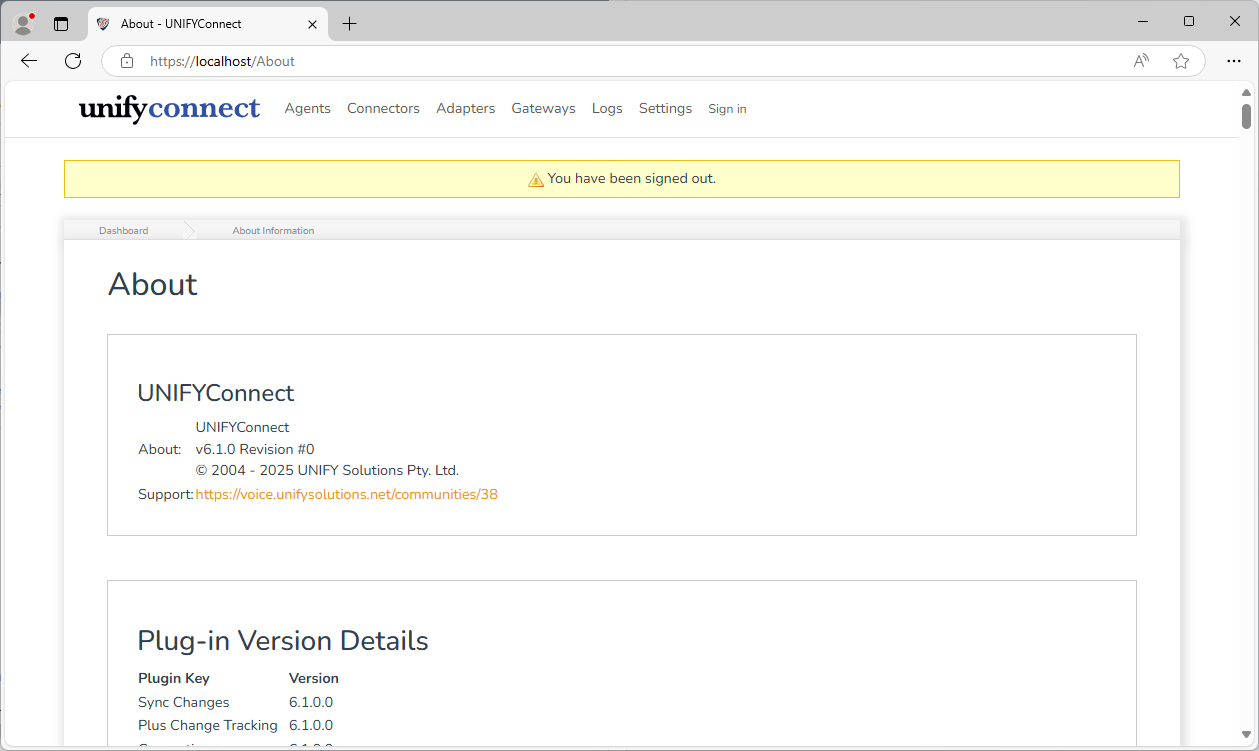
Configuring Authorization for the Web Component
The UNIFYConnect Web Component can be configured to require roles-based authorization for all users. Users are granted permissions based on their role.
Configuring Authorization
To configure authorization, open the Web.config file and make the following changes:
Inside the appSettings element in the configuration element, add the following elements:
<add key="owin:AutomaticAppStartup" value="true" />
<add key="ui:AuthorizeSetting" value="OpenId" />
<add key="ui:ClientId" value="{ClientId}" />
<add key="ui:AADInstance" value="https://login.windows.net/" />
<add key="ui:TenantId" value="{TenantId}" />
<add key="ui:PostLogoutRedirectUri" value="{PostLogoutRedirectUri}" />If any elements already exist with these keys, replace them.
The above three settings should be configured as follows:
| Name | Description |
|---|---|
| ClientId | The ID of the client application representing UNIFYConnect. |
| TenantId | The ID of the tenant. |
| PostLogoutRedirectUri | The URI to redirect to after logout. |
Roles
Operations on the UNIFYConnect website require the user to be in one of the following four roles:
| Role | Description |
|---|---|
| Read | Provides the ability to view all pages and configuration. |
| Write | Provides the ability to add components, trigger imports, update settings, etc. |
| Full | Provides the ability to delete components, clear connectors, etc. |
| Admin | Provides the ability to edit LDAP users. |
Set Up HTTPS Binding in IIS
Prerequisites
- SSL Certificate: You need an SSL certificate installed on the server. You can use a certificate from a trusted certificate authority (CA) or a self-signed certificate for testing.
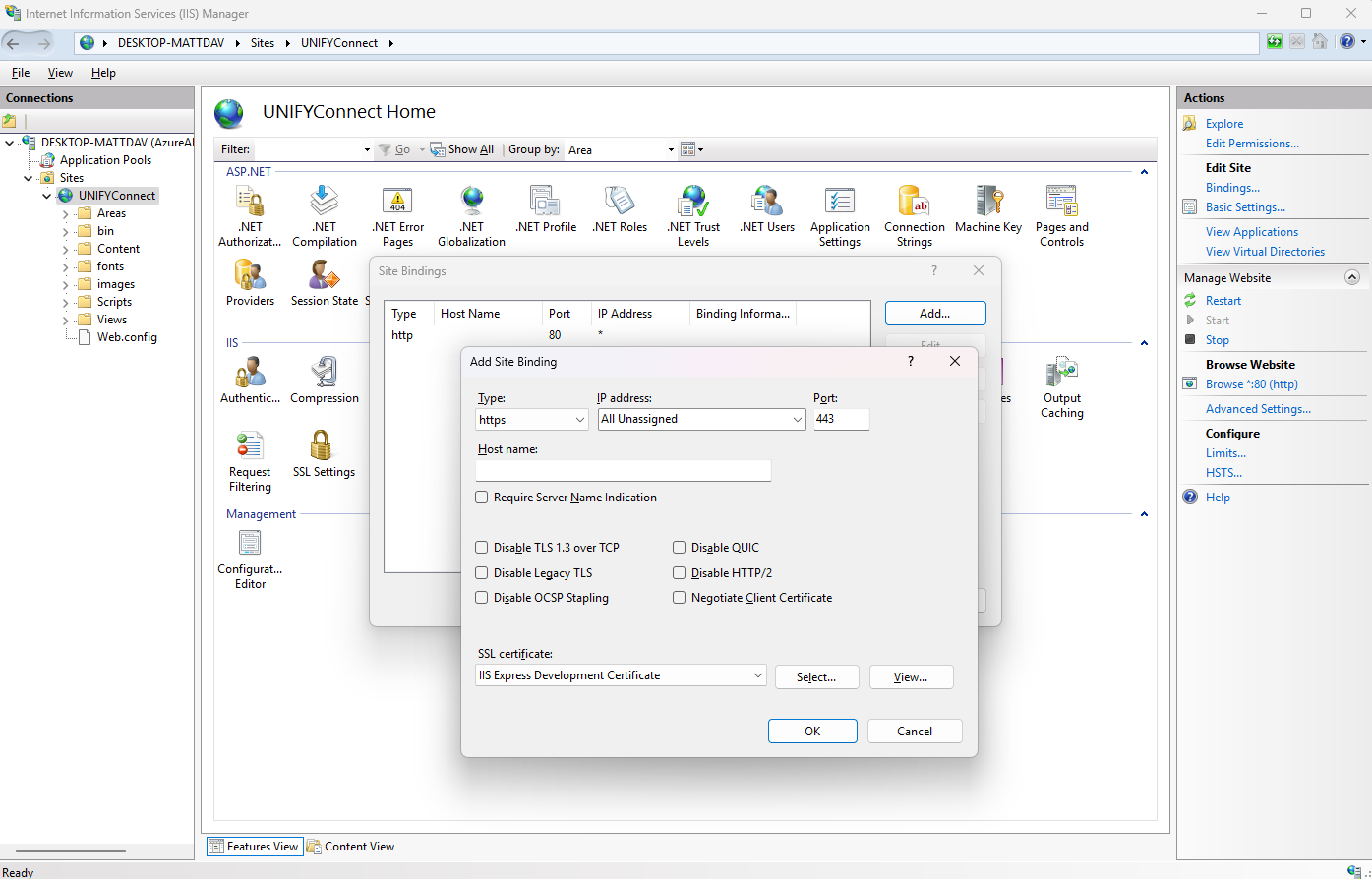
Steps to Set Up HTTPS Binding in IIS:
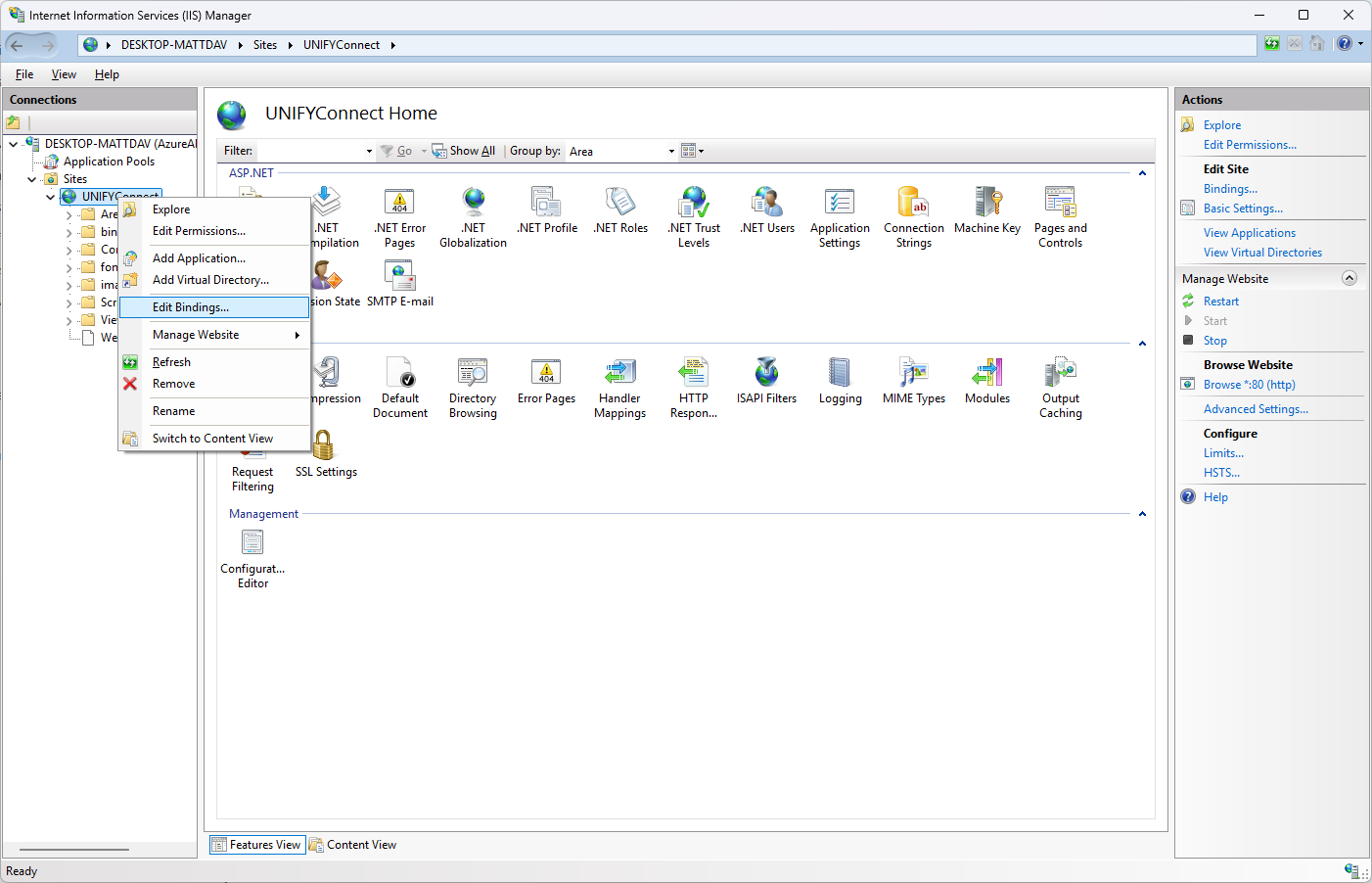
- In the
Add Site Bindingwindow:- Set Type to
https. - Leave IP address it to
All Unassigned. - Enter the Port number, and make sure it is not already in use.
- Choose your SSL certificate from the drop-down list.
- Set Type to
- Restart the website by clicking
Restarton the right panel (Actions).
INFO
- SSL Certificate: If you don't see your SSL certificate in the list, ensure it's installed under the server's
Server Certificatesin IIS Manager. - Firewall: Ensure that your firewall allows traffic on the configured port.
- Security Protocol: The security protocol TLS1.2 will be used.
Verifying Configuration
Once authorization has been configured, browsing to the UNIFYConnect website will redirect the user to the login page.
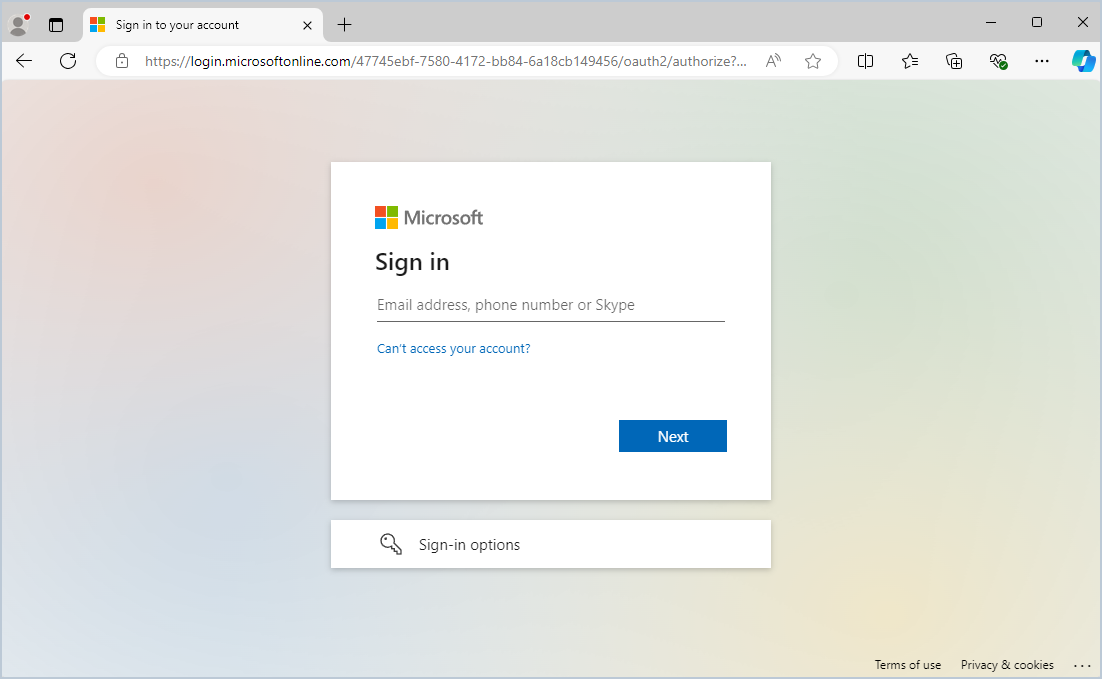
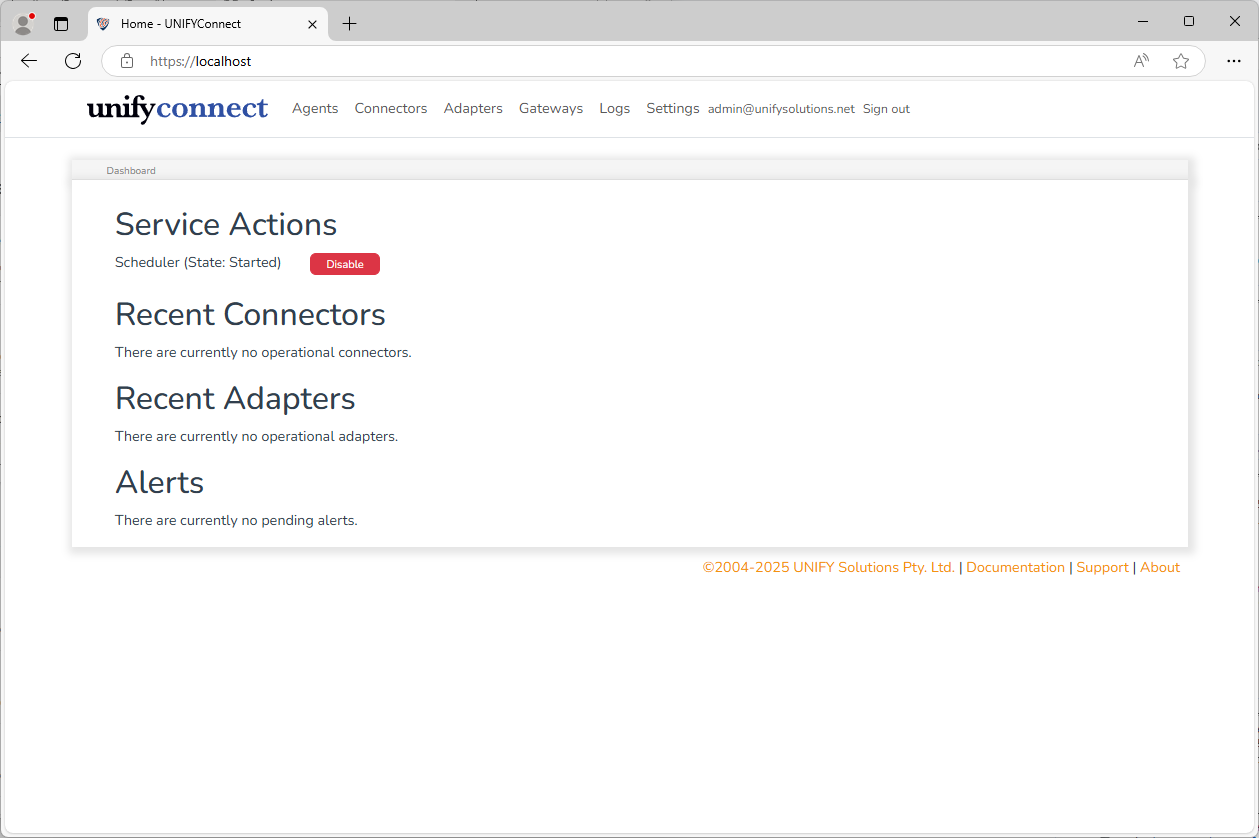
Upon successful login, the user can operate the UNIFYConnect website as usual
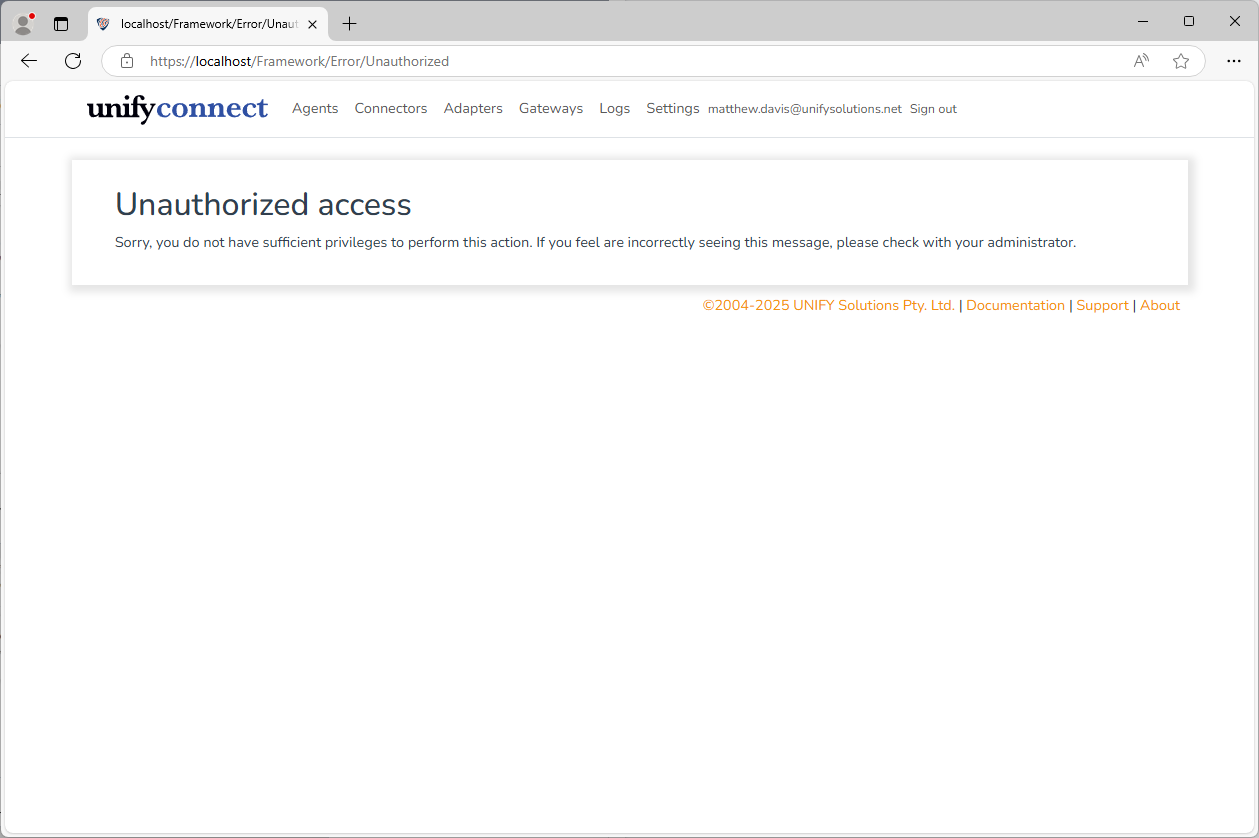
However, attempts to perform operations for which the user is not authorized will inform the user that they do not have sufficient privileges
Users can sign out at any time by clicking the Sign out link in the navigation bar